Directors Plan for vMix — macOS · Windows · Linux

Starts with a whole Sunday service in vMix, then every feature step by step: mock mode, reusable modules, the PDF handout, overlays, Web Controller and more.

🔒 Plays on YouTube. Nothing loads from YouTube until you click.

★ Web Controller — any old tablet or phone on your network becomes a live touch surface. No app, just a browser. See below ↓

DP — Directors Plan for vMix · for churches & live teams · macOS, Windows & Linux

Run your Sunday service — one click per cue.

Plan the worship service on Monday, let any volunteer run it on Sunday. Countdown, songs with lyrics, scripture, sermon and announcements — all in one rundown, every cue a single click in vMix. The same timeline runs sports shows, conferences and events.

⬡ for vMix · macOS ⬡ Windows ⬡ 20+ Languages ⬡ 30-Day Free Trial ⬡ $49 one-time · no subscription

Built for church media teams and volunteers.

In most churches the stream is run by volunteers — often by someone different every week. Directors Plan puts the knowledge into the plan, so whoever sits at the desk on Sunday just follows it.
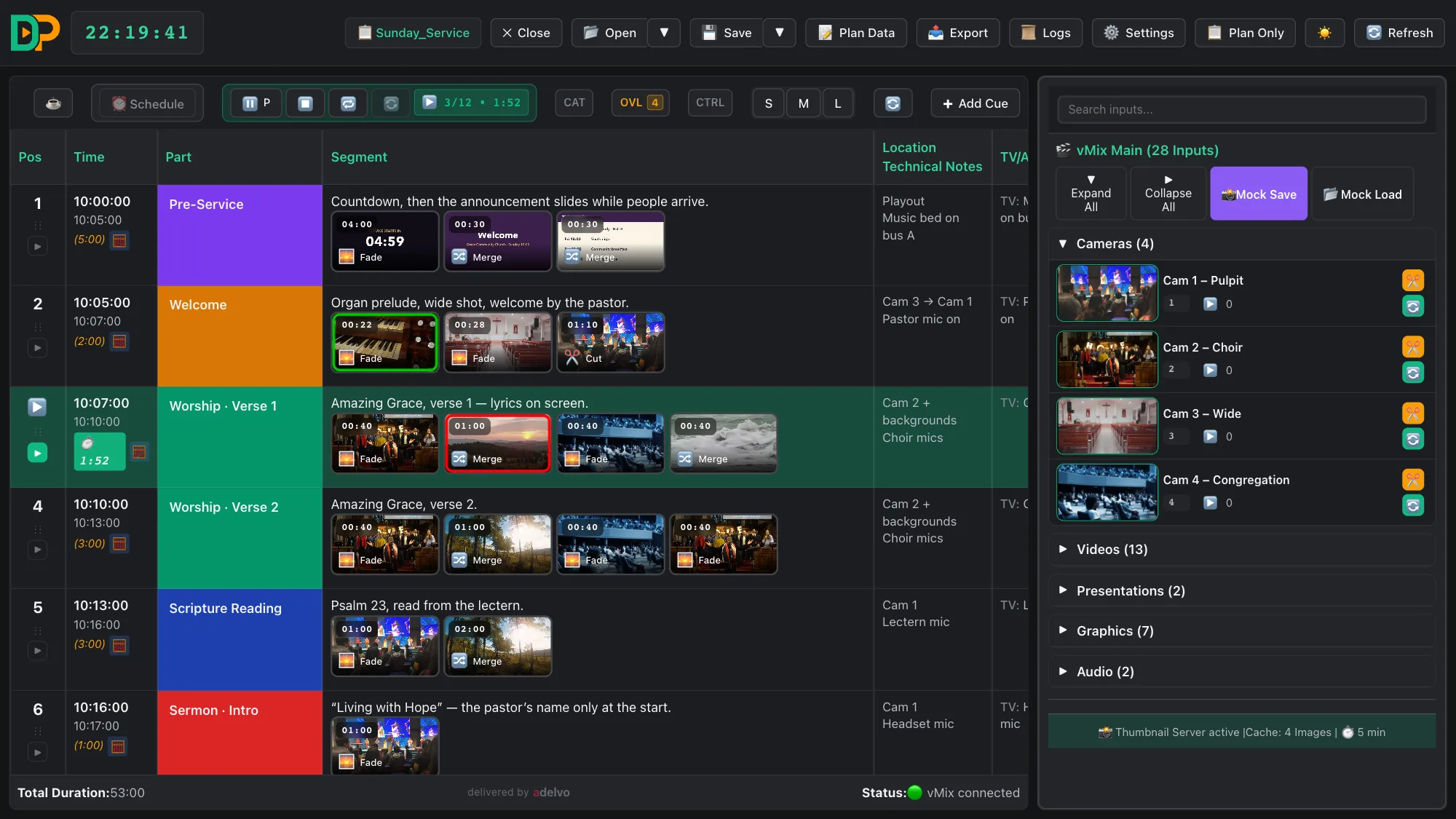
A Sunday service running with Play in Directors Plan: the playing cue is highlighted, colour-coded parts from Pre-Service to Blessing, tally on the thumbnails
Press Play once — the whole service runs on time, each part in its own colour.
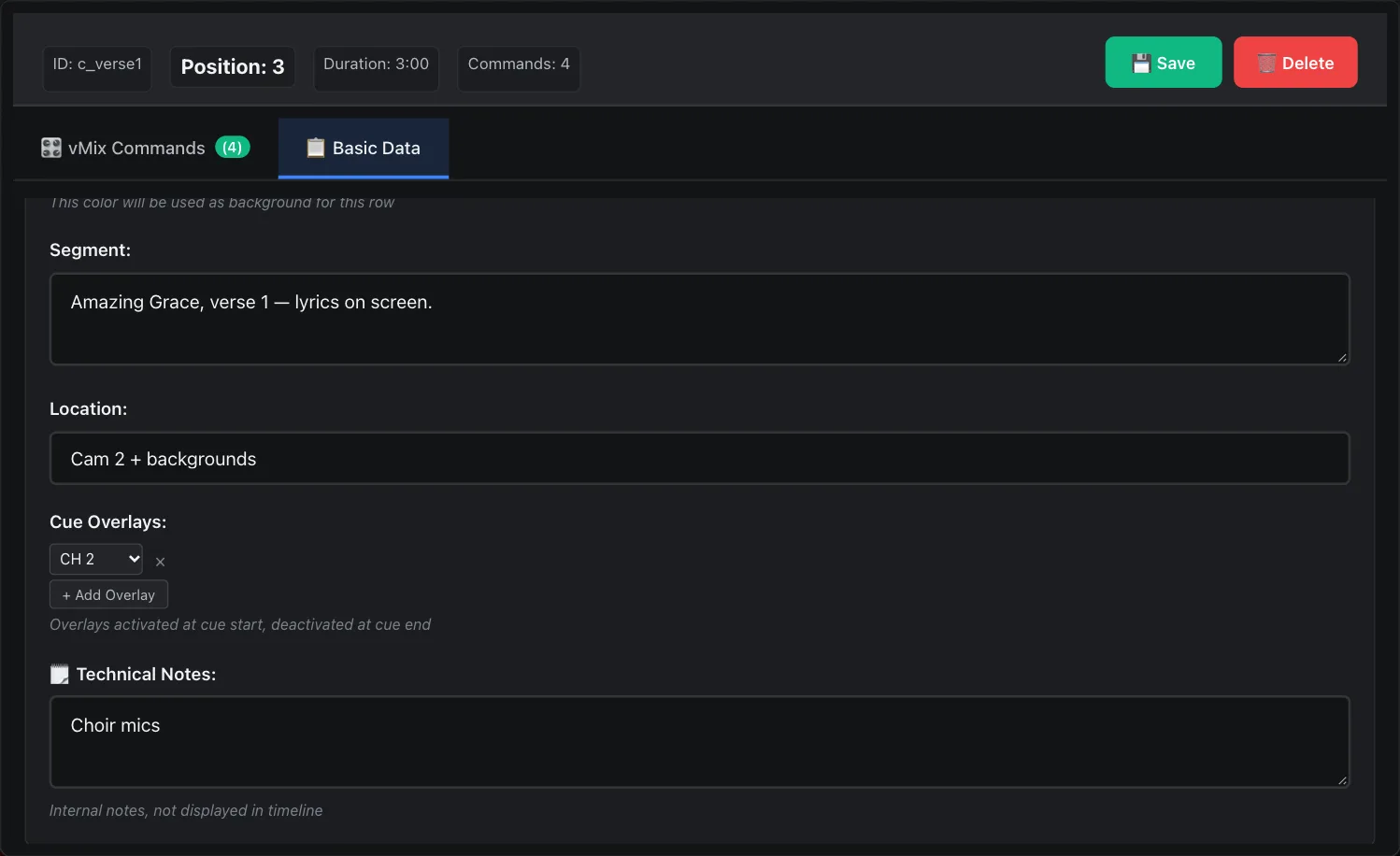
Cue editor: the lyrics overlay is set as a cue overlay — on when the cue starts, off when it ends
Lyrics, names and scripture are set per cue — on at the start, off at the end.
01

Plan on Monday, run on Sunday

The tech lead or pastor builds the service at home: songs, readings, sermon, videos. On Sunday the volunteer opens the file and goes cue by cue.

02

One click per cue

Every vMix command is a thumbnail in the order of the service. Red shows what is live, green what comes next — no guessing, no missed slide.

03

Lyrics, scripture, names

Lyric slides, Bible verses and name lower thirds are cue overlays: they come on when their part of the service starts and go off when it ends — automatically, even with Play running.

04

Countdown and announcements

The pre-service countdown, announcement slides and the church logo run on their own while people arrive — even on a schedule, before anyone is in the booth.

05

Rotating volunteers welcome

No vMix training for the weekly rota. The plan carries the experience, the call times and the phone numbers of tech lead and worship leader.

06

A tablet for the worship leader

The Web Controller turns any old tablet into a touch surface — the worship leader or pastor can fire the next song or ride the mic from the front.

07

Plan at home, without vMix

Mock mode saves the vMix state with thumbnails. Plan next week’s service on a laptop at home — it runs 1:1 on the church PC.

08

Fits a church budget

$49 once, no subscription, all features. The 30-day trial has no limits — try it with your real Sunday service.

Prepare at home. Reuse modules. Hand out the plan.

75 seconds: plan at home without vMix, append Baptism and Communion, print the handout.

A

Plan at home, without vMix

Save the church PC’s vMix state once as a mock file — with every input and thumbnail. Then plan next Sunday on your laptop at home; the plan runs 1:1 at church.

B

Reusable modules

Build recurring parts once — Baptism, Communion, Announcements — and append them to any service with Open → Append. Times are recalculated automatically.

C

A PDF handout for the whole team

The HTML export opens in any browser and prints as a PDF: call times, contacts and every part of the service with its pictures — for pastor, worship team and volunteers.

⬇ Sample handout (PDF, 3 pages)

The complete tutorial — 25 minutes, start to finish · Plays on YouTube. Nothing loads from YouTube until you click.
Watch the full video tutorial series in the manual →

Streaming Idiots × Directors Plan

Directors Plan featured on the Streaming Idiots show with Tom Sinclair

Tom Sinclair puts Directors Plan through its paces on the show — the good part kicks in around 21:00.

Web Controller — any old tablet or phone becomes a live control surface. No app, just a browser.

Besides automated playback, control from the timeline and the export to a Stream Deck XL, you can also control everything at any time from any device with a browser — even while the automation is running. Directors Plan now serves a live touch interface to tablets and browsers on your local network — generated from the open plan, no file export. Fire cues, trigger replays, switch overlays, ride audio groups. Every tap runs through the same command logic as a click in the app — Command-Log and Mock mode included.

D-Plan Web Controller — tablet, browser
▶ Try all five pages live — Cues · Replay · CTRL · OVL · CAT

This is the real Web Controller page, running on recorded data from a real plan — drag the faders, switch outputs, press REC. Nothing is connected.

The plan, live on a tablet — every vMix command as a touch button in timeline colors, with thumbnails. Cues · Replay · CTRL · OVL, paginated to fit the screen.

🌐

Generated from your plan

Like the Companion export, every vMix command becomes a touch button — timeline colors, optional thumbnail. But there is no file: the surface exists only while Directors Plan runs and is served live by the app.

📶

Set up in seconds

In Settings → Web Controller switch the server on (port configurable, default 8570; optional 4-digit PIN). The reachable address shows as a QR code — point the tablet at it, done. Enable once; the server remembers its state and starts with the app.

🔄

Always current, hands-free

On plan open the surface is generated and pushed to every connected device. Plan changes (new cues, overlay assignments) sync automatically every 30 seconds. The new 📡 button at the left of the timeline bar pushes instantly.

📄

Five pages

Cues: all commands as touch buttons. Replay: one row per time, Cam 1–4 (or 8) exactly aligned — a tap picks the cam, marks the last N seconds and plays to output. CTRL: a mixer — Master, buses, your volume groups and optionally every audio input as channel strips with fader, mute and live meters; REC/STREAM/EXT and the output sources (Output, Preview, MultiView, Replay, Mix 1–16, any input) on top. OVL: assigned overlay channels as toggles. CAT: switch vMix categories with one tap.

👆

Tap, hold, resize

Tap fires the button; hold (or right-click on desktop) opens an action sheet with Play/Pause and Restart for that input. Four button sizes (S/M/L/XL) — physically identical on any device, only the column count adapts.

📐

Fits every screen

Each device paginates for itself: every page fits exactly, nothing scrolls; rotating the tablet re-paginates live. The display stays awake (wake-lock) and a status dot shows the connection to the app.

📱

Old hardware welcome

Anything with a browser works: a ten-year-old Android tablet, a retired iPad, a spare phone, a laptop. Nothing to install on the device, nothing to pair — open the address, enter the PIN, and that forgotten tablet is a replay desk, an overlay panel and an audio fader bank. Set it up once in the Export menu; it syncs automatically from then on.

On a real desk — 21 seconds: Start clips with transitions from the Cues page, pull the Master fader on CTRL and watch vMix follow with live levels, then switch an overlay on from OVL. Phone video, no cuts.
Web Controller: switch it on, scan the QR code — the plan becomes a touch surface on the tablet.
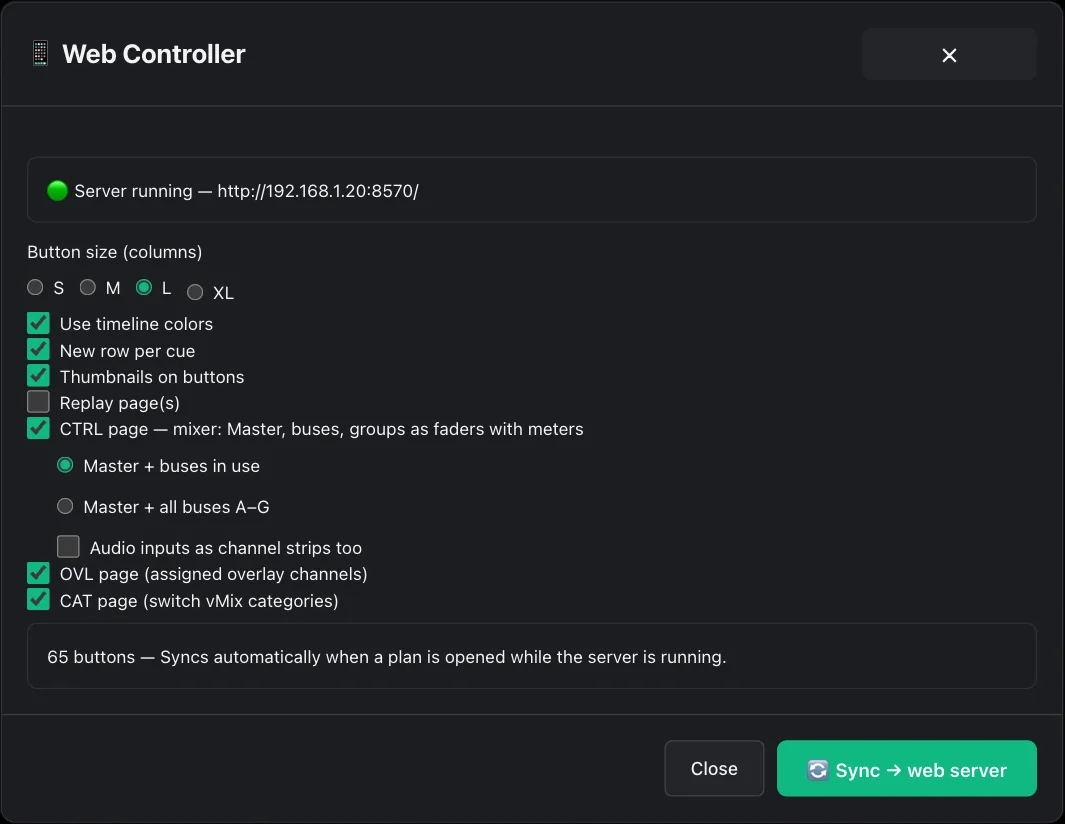
Export → Web Controller: button size, timeline colors, thumbnails, CTRL/OVL/CAT pages and the Sync button
The Web Controller panel — button size, thumbnails, which pages to include, then Sync → web server.

License & security: the surface is served only by the running, licensed Directors Plan instance and is meant for your local production network. An optional PIN keeps curious fingers in the same Wi-Fi out.

Several operators, one vMix. No second machine.

One person cuts the cameras, one runs the break show, one handles the interview subtitles. All on the same vMix, each on their own device, nobody fighting over the mouse or the keyboard focus.

01

Cameras & kiss cam

The director cuts live from the timeline, the keyboard or a Stream Deck with live tally, and keeps the vMix mouse to themselves.

02

Break show from the plan

Ad breaks, half-time, highlights: the plan runs them automatically, a second operator starts, pauses and overrides from a tablet in the Web Controller.

03

Interviews with subtitles

A third operator adds live subtitles and translation with LLT on a Mac next to it, into the same vMix.

04

Audio on its own surface

The CTRL page turns any tablet into a mixer with live faders and meters, and MixDesk X takes care of the house PA, separate from the vMix process.

05

From the audience

Sit in the room with a tablet: override the plan, switch cameras, and now ride the mic or the master on the Web Controller while hearing exactly what the audience hears.

Directors Plan does not have to run on the vMix machine. There, the small DP Thumbnail Server is enough: no extra window, no extra monitor, no extra load on the graphics card vMix needs for rendering. Plan and control run on a mini PC next to it, Linux works too, and if that box ever fails, vMix simply keeps going.

LLT — Local Live Translator · MixDesk X · Web Controller live demo

One person plans. Someone else hits Play.

Most live productions don't have a dedicated director at vMix for every show. The expertise lives with one person; the execution falls to whoever's available. Directors Plan separates planning from operating — so the plan carries the knowledge, not the person.

01

The planner builds the show

Drag vMix inputs, set transitions, add cues — visually, with a thumbnail for every source.

02

Everything saves to one file

Cues, timings, thumbnails, contacts and crew notes — embedded in a single .dplan, no dependencies.

03

The operator opens it and presses Play

Send it by email or USB. Whoever sits at the desk doesn't need your knowledge — just the file.

04

Override is always there

Live is live. Pause, cut to any camera, restart a single cue, fire the next one by hand — then let the plan keep running.

And when you're the one at the desk?

You can already run the show. Directors Plan just means you don't have to run it on the edge of failure every time — the cues, transitions and timings are prepared, so your head stays free for the show, not for the next button.

🧠

The load is on the plan, not your memory

Cues, transitions and timings mapped in advance. Pause, override, restart any cue, fire the next one when the moment's right — like a DJ on hot cues, the skill stays yours, the cognitive load doesn't.

🎚️

Prefer your Stream Deck? Even better.

One click exports a full Companion config — thumbnails and transition icons on every button. Your hardware drives the prepared show; you keep working the way you like, with the rundown behind it.

🌴

And sometimes — hand it off

Not every gig is Triple-A. The mid-tier Saturday job can run from the file — a junior or a vacation-cover at the desk. Same show quality, different operator, and you finally take a weekend (or a real holiday) back.

Take your weekend back — the plan runs the show, you don't have to be at the desk.

Build it once. Drive every output.

One rundown becomes your automation, your live control surface, your printed handout, your Stream Deck and your data export. Plan the show once — Directors Plan delivers it in every shape your crew needs.

▶️

Automate

Press Play for frame-accurate playback — transitions, overlays and timings fire on cue. Manual override and single-cue restart at any moment, because live is live.

🎛️

Control NEW

The new Controller (CTRL) adds a live surface — group faders, real-time Master/Bus levels, stream, record and output switching, straight to vMix.

📄

Hand out

Export a responsive HTML/PDF call sheet — the rundown your camera, sound and talent read, live and self-updating.

🎚️

Companion export

One click builds a full Stream Deck / Companion config — multi-page, thumbnails on every button, transition icons embedded.

📊

CSV export

Take the rundown into a spreadsheet — every cue, command and timing as structured data for planning and archiving.

➕

Append — modular shows

Merge reusable modules (opener, break, outro) into a running show — the same bundle-append idea as vMix, keyed on stable vMix GUIDs.

🖼️

Start here: the DP Thumbnail Server

vMix has no built-in way to hand out preview images of your inputs. Run the free DP Thumbnail Server once on the vMix machine and every input — videos, cameras, NDI, PowerPoint, overlays — gets a real preview thumbnail of its actual content. Those previews then travel everywhere: in the timeline, embedded in the mock file, in the HTML/PDF call sheet and on your Stream Deck buttons — so you see what each cue really shows at a glance, not just a transition icon. It's the elemental first step.

🌐

Beyond vMix: trigger anything with an HTTP request

Any cue can fire an HTTP request — GET, POST, PUT, PATCH, DELETE or HEAD to any URL. Drive lighting, automation, other broadcast gear, webhooks or your own services straight from the rundown. If it speaks HTTP, a cue can control it.

01

Plan Your Rundown

Build your show visually — drag vMix inputs, set transitions, add cues. See thumbnails for every video, graphic, and camera.

02

Automate or Control

Press Play for full automation with frame-accurate timing — or control manually at any time. Schedule starts, set loops, get warnings.

03

Export & Deliver

Print production call sheets as HTML/PDF. Export Stream Deck configs with thumbnails. Share plans with your crew — one file, everything included.

50+
vMix Commands
22
Transitions
20+
Languages
8
Overlay Channels
4
Stream Deck Layouts

Your production plan. On screen, on paper, on every device.

In film it's the call sheet. In TV it's the rundown. Directors Plan creates both — and executes them live.

⭐ Key differentiator

Not just a controller. A complete production tool.

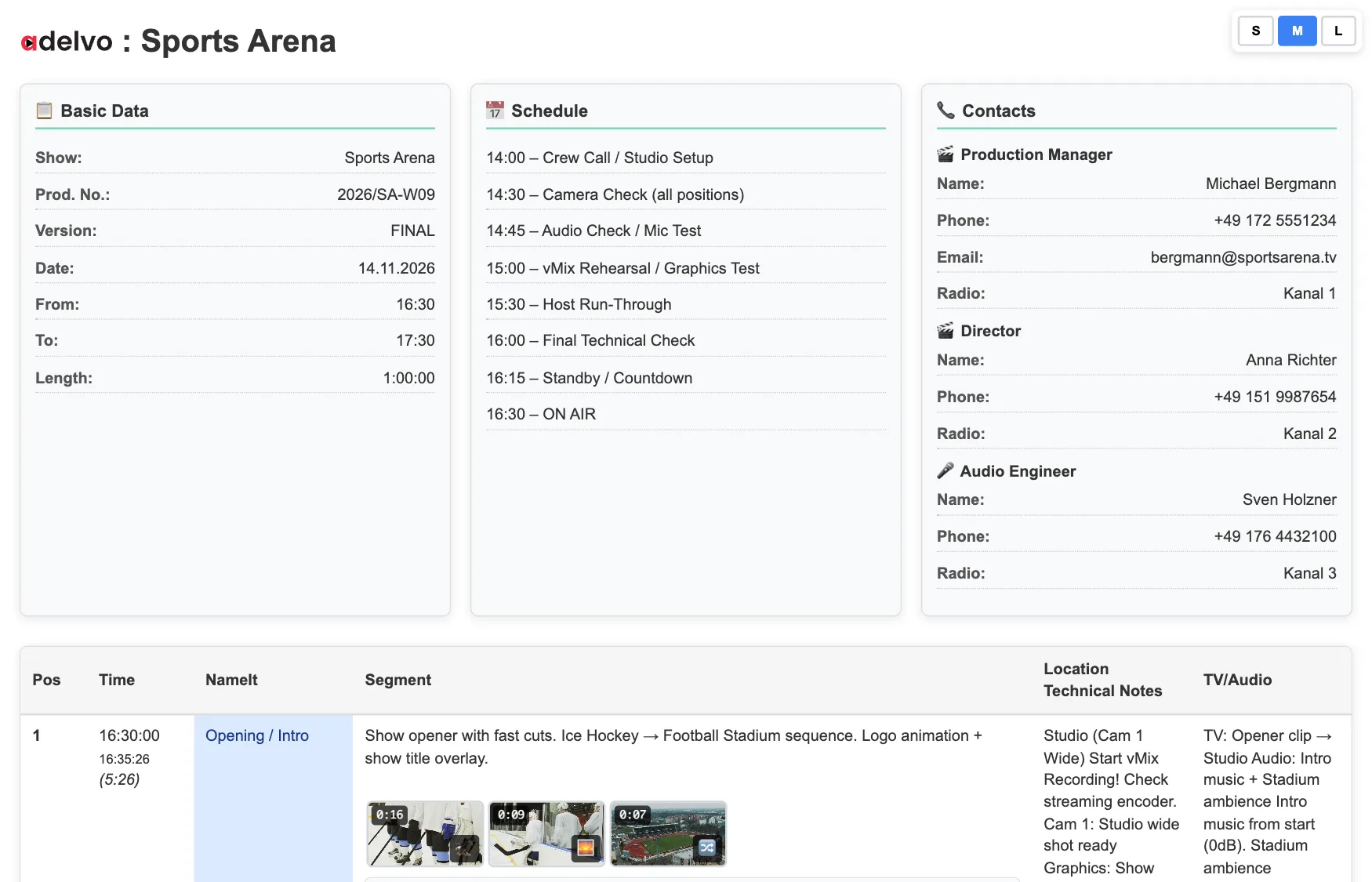
Most vMix tools only control. Directors Plan also plans and documents your entire production — with show metadata, schedules, contacts, and visual cue sheets with instructions for camera operators, sound engineers, live reporters, and moderators.

Exports: HTML rundown, CSV and Companion / Stream Deck — straight from the plan.

📄

HTML/PDF Production Handout

Export your complete rundown as a single responsive HTML file — everything in one file, no external dependencies.

  • Embedded thumbnails, time codes, crew instructions, and notes
  • Three size modes (S/M/L)
  • View in any browser, print as PDF, email to talent
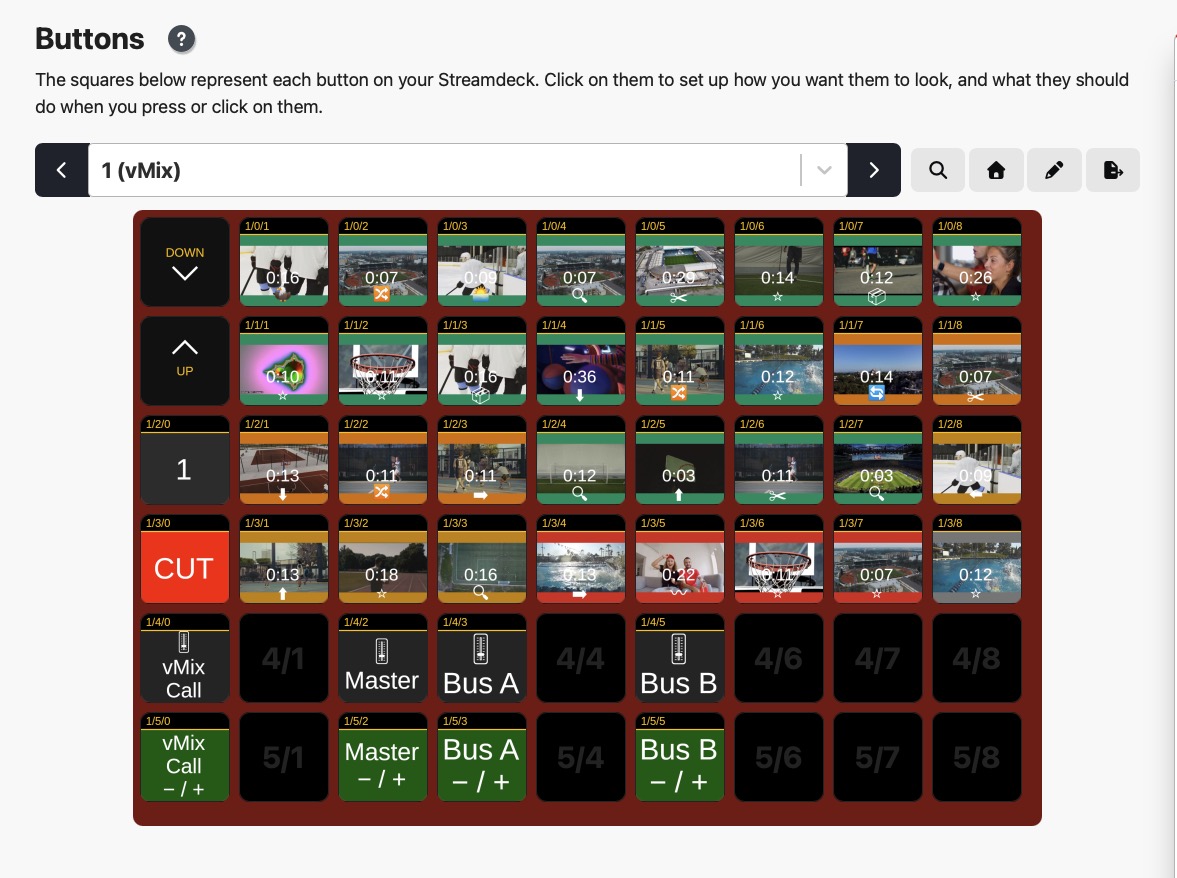
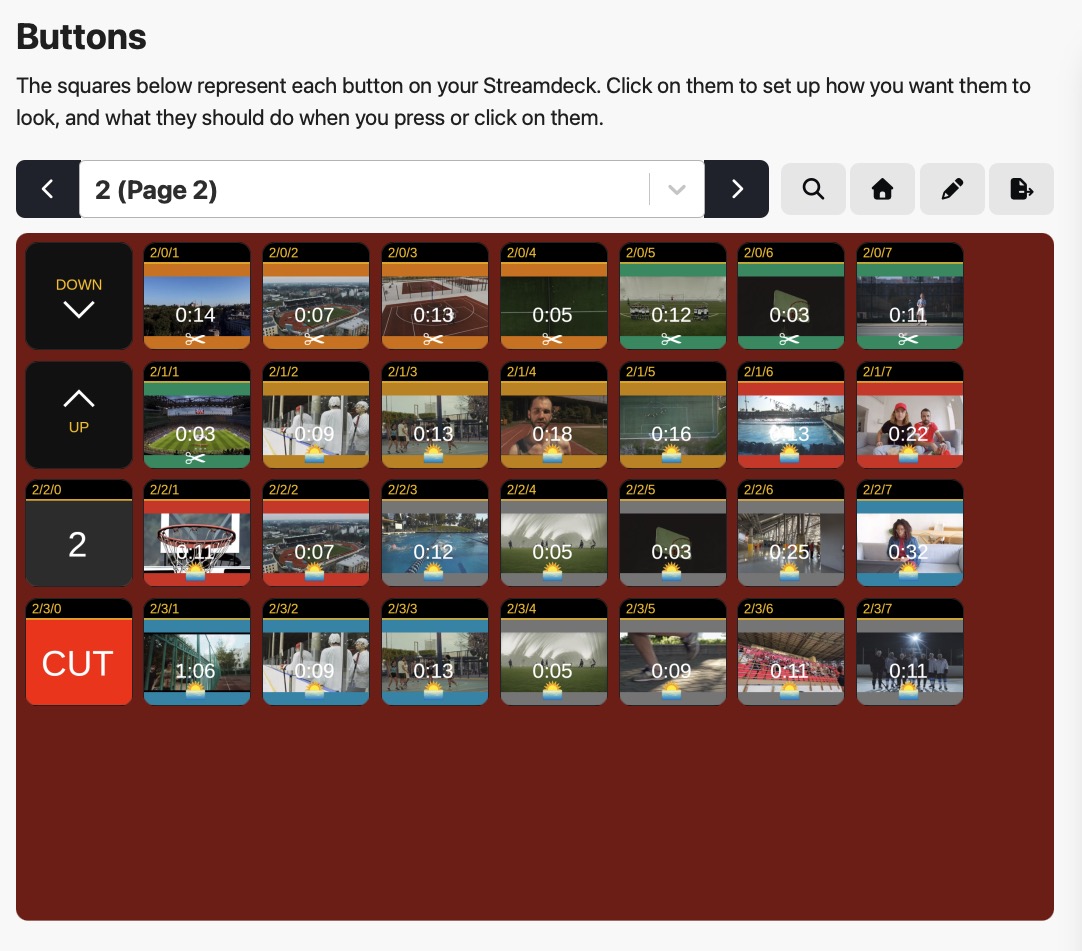
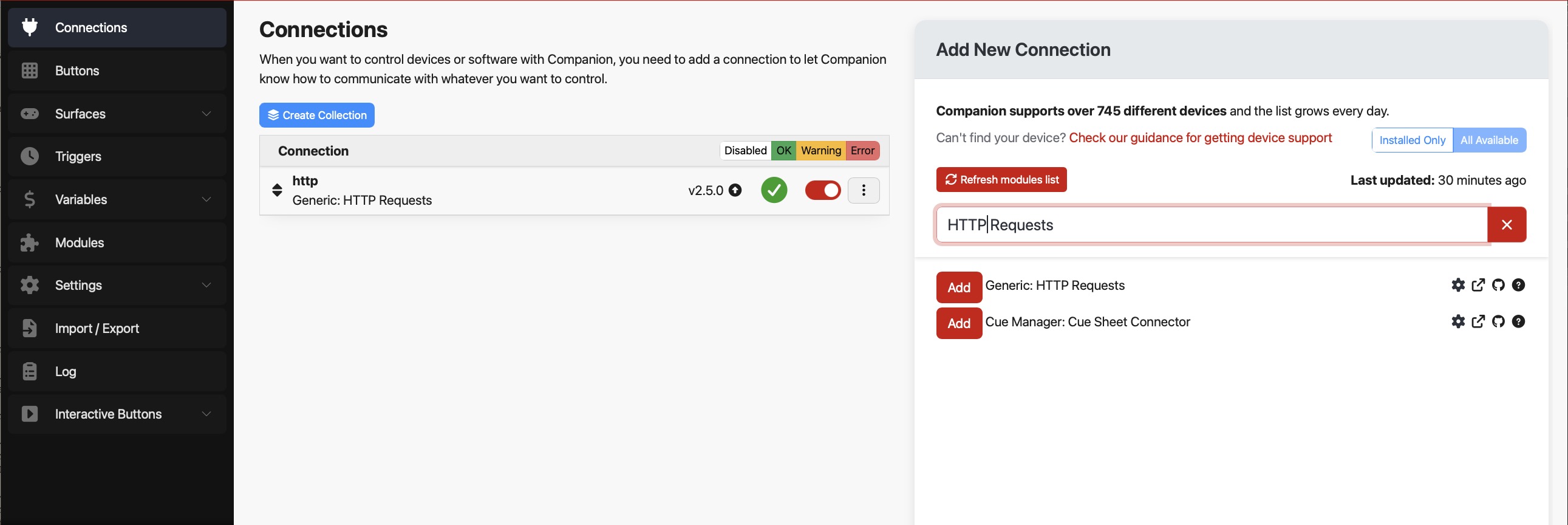
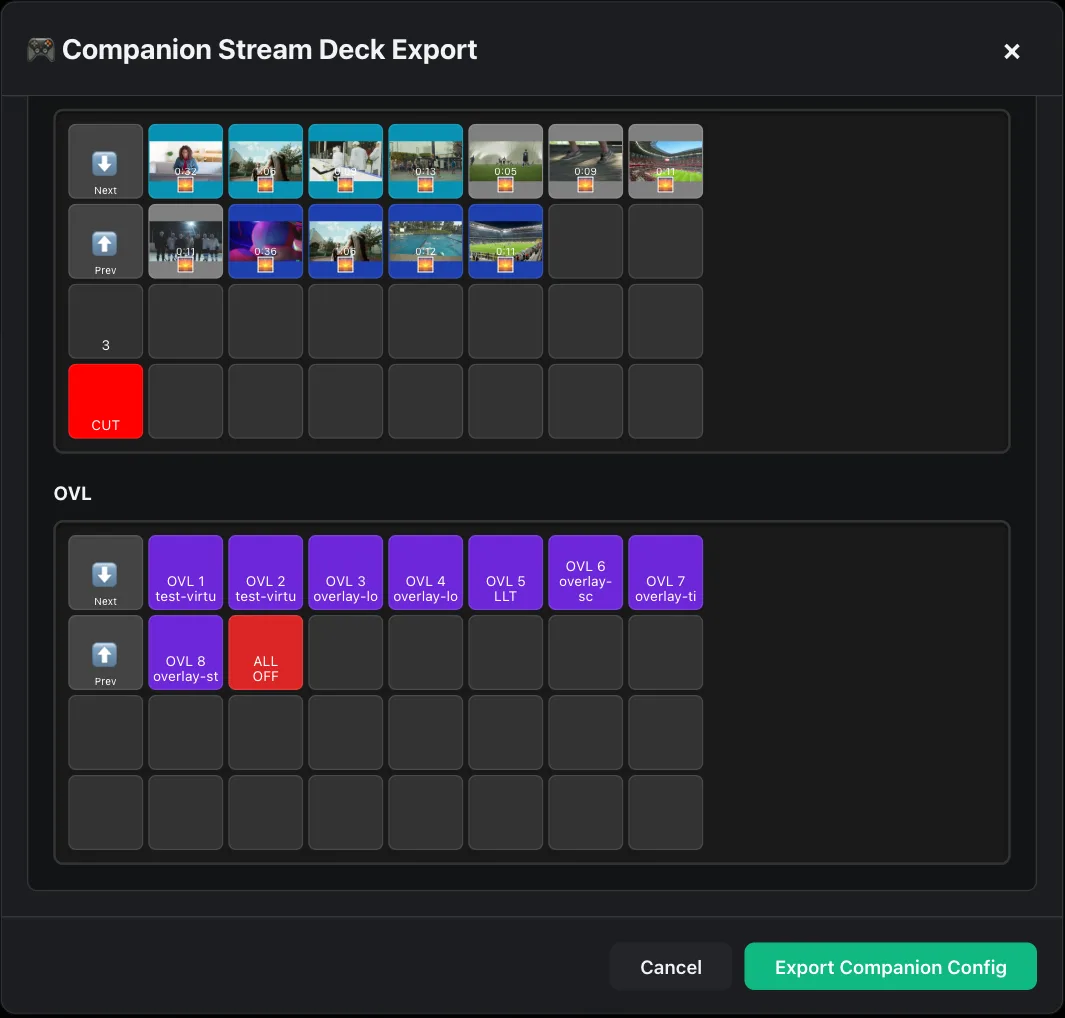
Generated Stream Deck + XL layout in Companion — cue buttons with input thumbnails and audio dial rows for vMix Call, Master, Bus A and Bus B Companion Buttons — generated Stream Deck pages with thumbnails, page navigation, and cut buttons Companion Connections — HTTP module setup
🎮

Companion / Stream Deck Export

One click generates a complete Companion 4.x config for your Stream Deck.

  • Choose layout: Mini 6, Standard 15, XL 32, Plus 8 buttons
  • Timeline color-coding or custom colors per button
  • Thumbnails on every button, row-break control per cue
  • Page navigation and cut buttons automatically included
  • Live preview before export
  • Setup: Install HTTP module (Generic HTTP Requests) under Connections, then Import Configuration → Full Reset & Import — done in under a minute

Anyone who has tried this manually in Companion knows — even one button takes minutes. Directors Plan does all buttons in seconds.

Plan Data: show, times, call times and contacts — entered once, printed on every export.

📋

Fully Dynamic Plan Header

Fully customizable show metadata for every production.

  • Show name, production number, dates, schedules
  • Unlimited custom fields and contact blocks with sub-fields
  • Only populated fields appear in exports
  • SVG logo for branded call sheets
  • Add blocks for sound, lighting, or any department — remove what you don't need

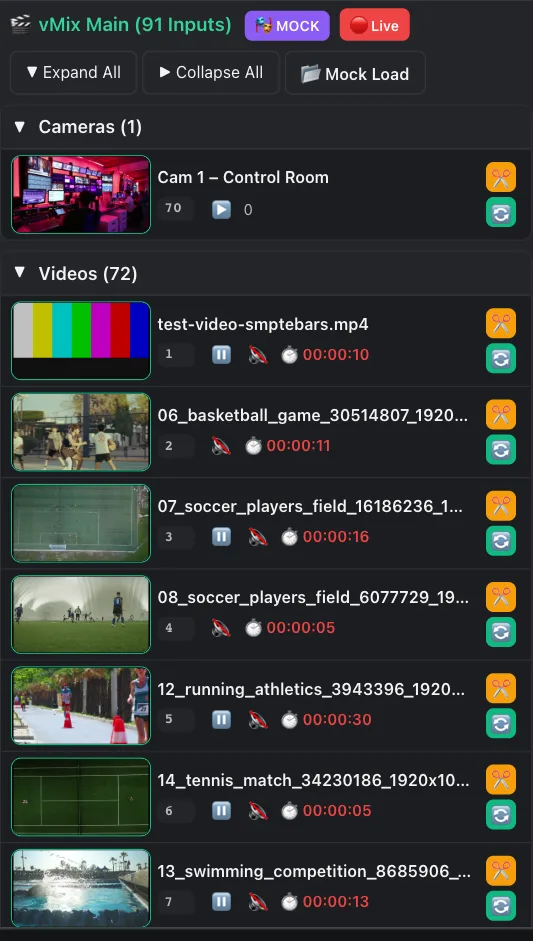
Mock mode: save the vMix state, plan without vMix, run it live later.

📦

One File = Everything

The mock file replaces the live vMix connection — plan the complete show remotely without vMix installed. The plan file you create works with the real vMix on-site.

  • Drag & drop inputs from vMix Controls sidebar into the timeline
  • Works identically with mock file or live vMix connection
  • Default transition or preview mode configurable in settings
  • All times recalculate automatically
  • Reorder cues via drag & drop — times update instantly
  • Right-click any thumbnail item to change transition, source, or command
  • Reorder, duplicate, or delete items within a cue
  • Thumbnails show multi-command overlay icons
  • Hide sidebar for full-width plan view
  • Auto-restart all videos/media to position 0 before playback
  • Each command: transition (full automation) or preview load (manual cut via keyboard/Companion)
  • Send via USB stick or email — no extra folders, no broken links, no dependencies
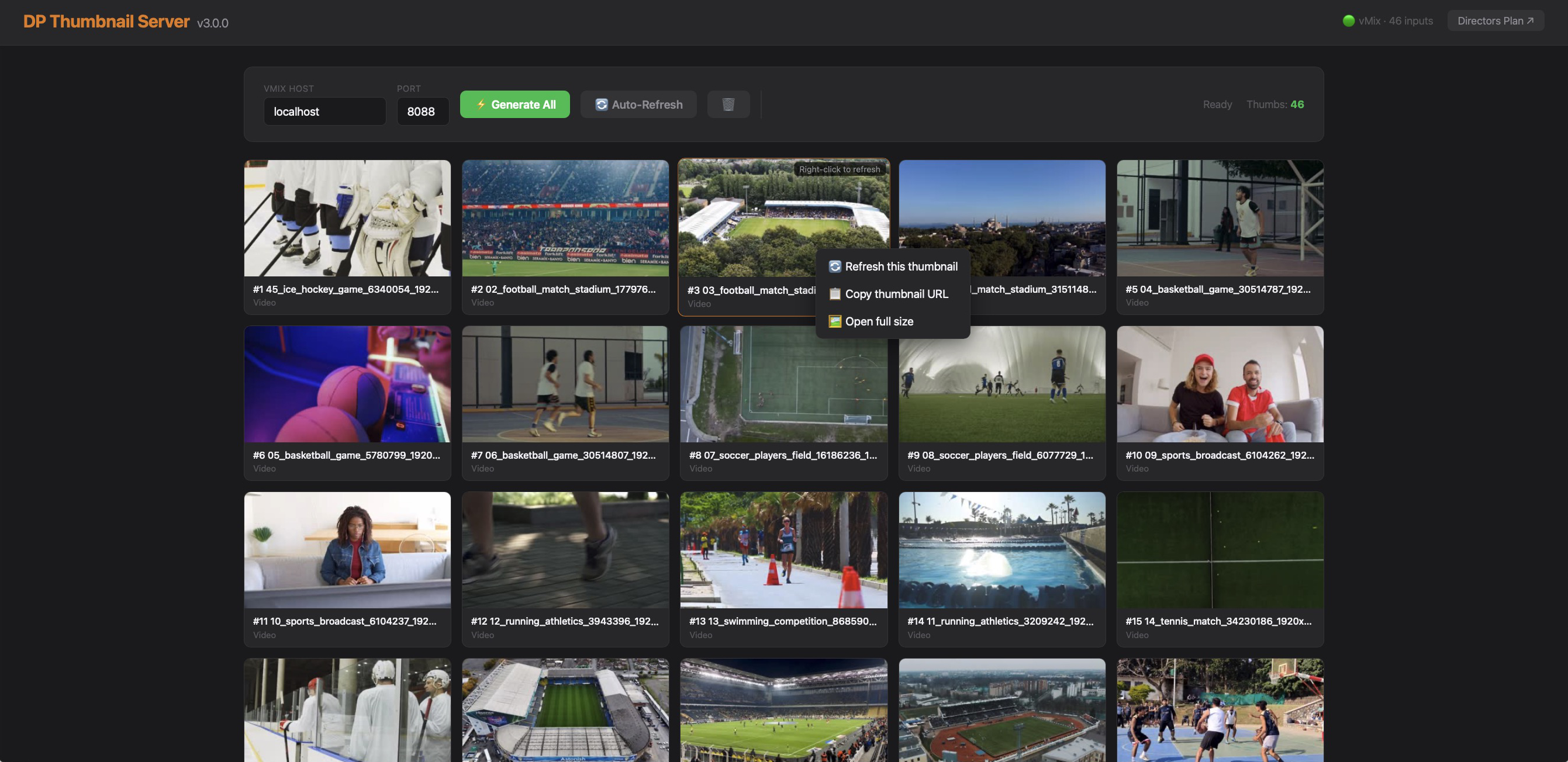
DP Thumbnail Server — free tool to generate preview thumbnails for every vMix input
🖼️

Embedded Preview Thumbnails

The free DP Thumbnail Server generates preview images for every vMix input in one click.

  • Videos, NDI, cameras, PowerPoint, overlays
  • With ffmpeg on the vMix PC: thumbnails in the right size instantly
  • Directors Plan can also convert thumbnails
  • Embedded in plan file and mock saves
  • Travel everywhere: timeline, exports, Stream Deck buttons, printed call sheets

Built for production day.

From pre-production to live execution — every feature designed for real-world broadcast workflows.

📅

Visual Timeline

Drag & drop vMix inputs from the sidebar — the default transition is configurable in settings (22 options).

  • Right-click any cue to change commands or videos after the fact
  • Reorder cues by dragging — all times recalculate automatically
  • Color-coded rows, live thumbnails, customizable columns
  • The Cue Editor lets you add text fields, separator lines for visual organization, and crew instructions per cue
  • Text-to-Link turns any text into a clickable vMix command
  • Each thumbnail offers multiple click actions: restart the input (play from the beginning), play/pause, or fire the cue command
🧩

DP-Append — Build Shows Modularly

Merge several DP show modules into one running show — without replacing the show you already have loaded. Mirrors the vMix bundle-append workflow.

  • Split-button Open ▾ — primary click opens (replaces the show as usual); the caret appends. Shortcut ⇧⌘O (Open without Shift, Append with Shift). The file picker takes .dplan and .yaml and remembers the last folder.
  • Appends, never overwrites. The module's cues are added to the end of the running show — the active show, its file path and the history stay untouched.
  • Collision-free by design. Every appended cue gets a new, unique ID and is tagged internally as "appended" (source = module name). The anchor is always the vMix input GUID (InputKey) — never number or title — so cues stay correctly matched after an append.
  • Live / Pending. Inputs not yet in the vMix session are flagged PENDING — such a cue won't fire and shows a hint. "Re-Scan inputs" re-reads the vMix inputs and switches PENDING cues live.
⏯️

Play Mode — Full Automation

Automatic execution with precise timing, countdowns, and warning system.

  • Optionally restarts all videos, PowerPoints, and media to position 0 before playback starts
  • Loop mode, scheduled starts with repeat
  • Full manual override at any time — preview or cut to any input while the plan keeps running: via keyboard, the timeline thumbnail commands, or the vMix Controls sidebar
🎛️

vMix Controls Sidebar

Auto-built from your live vMix instance with categorized inputs, proxy thumbnails, and search.

  • Drag any input into your timeline — the default transition is configurable (22 options: Cut, Fade, Zoom, Wipe, Slide, Fly, Cube, Merge, Stinger 1–4, and more)
  • Stable input IDs ensure commands stay correct even when sources are reordered in vMix
✏️

vMix Command Builder

Visual editor for 50+ vMix commands: 22 transitions (Cut, Fade, Zoom, Wipe, Slide, Fly, CrossZoom, Cube, CubeZoom, Merge, VerticalWipe, Stinger 1–4, and all Reverse variants), plus overlays, audio, recording, streaming, text, countdown, and HTTP-request commands. Execute and preview instantly.

🎭

Mock Mode — Plan Anywhere, Share Everywhere

Save a complete vMix snapshot as a mock — all inputs, all thumbnails, embedded directly in one file.

  • No vMix installation needed to plan
  • Generate thumbnails with the free DP Thumbnail Server in one click, create the mock, and plan the entire show offline — including overlays
  • Stable vMix input IDs ensure commands stay correct regardless of source order
  • The file is extremely small, easy to email
  • Need to send the vMix setup too? Save it as a vMix Preset (zip bundle) alongside the plan
  • A director plans the complete show remotely and sends it back — the venue loads the file, hits Play, and everything runs: commands, timings, contacts, crew instructions, call sheets
  • Remote control via VPN is also possible — you don't even need to be on-site
  • One file, zero dependencies
⏱️

Smart Duration

Auto-detect video lengths from vMix metadata.

  • Configurable default duration for cameras and images (min:sec)
  • Batch-update all cue durations in one click
  • Auto-calculation toggles per project
🔀

Live Override During Playback

While the automated plan runs, you keep full control: preview or cut to any input, play/pause/restart videos, loop, skip to next/previous — all via keyboard or mouse.

  • The plan continues seamlessly
  • Even works remotely via VPN — full show control without being on-site
  • Autopilot with a manual override
🔗

Text-to-Link vMix Commands

Select any text in your cue and turn it into a live vMix command link. Tap a linked word to trigger a camera switch, overlay, or any vMix function directly during your show.

🎬

Overlay Control Mode

8 overlay channels with show-level and cue-level control.

  • Exclusive or Additive mode per channel — toggle any overlay via Ctrl+Shift+1–8 during playback
  • Scoreboards, lower thirds, logo bugs, tickers — all automated per cue
🔊

Audio & Playback Settings

Smooth volume crossfades when switching inputs with configurable target volume and fade duration.

  • Automatic audio bus routing (Master, A–G)
  • Auto-restart media before playback, default transitions per project
📝

Session Logging

Automatic logging of all vMix commands and playback states. Daily log files, built-in viewer with auto-refresh, and quick folder access.

⌨️

Full Keyboard Control — Even During Automation

Complete vMix control from the keyboard.

  • Input 1–10 instantly on Preview or cut direct to Program
  • Play/Pause, Restart, Next/Previous, Loop — each with Shift to toggle between Preview and Program
  • Perfect for live camera switching, restarting a forgotten video, or stepping through PowerPoint slides mid-show
  • All shortcuts work while the automated plan is running

vMix Shortcuts (when connected)

1–9, 0 Input 1–10 → Preview
F1–F10 Input 1–10 → Cut Direct to Program
C Cut/Take   Ctrl+Enter Cut (Preview → Program)
Space / P Play/Pause (Preview)   +Shift Program
R Restart (Preview)   +Shift Program
N Next Item   B Previous Item   +Shift Program
L Loop Toggle (Preview)   +Shift Program
Ctrl+Shift+1–8 Toggle Overlay 1–8

File Shortcuts (always active)

Ctrl+O Open Plan
Ctrl+S Save
Ctrl+Shift+S Save As
Ctrl+W Close Plan

macOS: F-Keys may require Fn key or System Preferences → Keyboard → "Use F1, F2 as standard function keys"

Playback: click cue by cue with live tally, or press Play and let the plan run.

Overlay Control Mode

Full control over 8 vMix overlay channels — globally for the entire show or per cue. Toggle overlays with keyboard shortcuts, set them to auto-activate during playback, and choose how show-level and cue-level overlays interact.

🎬

Show Overlays

Define up to 8 overlays that stay active for the entire show. Assign any vMix input per channel. Each channel can be set to ON (active during playback), manual-only (toggle via shortcut), or OFF. Choose between Exclusive and Additive mode — Exclusive turns off show overlays when a cue has its own overlay on the same channel, Additive keeps both active.

🎯

Cue Overlays

Any cue can activate or deactivate overlays on specific channels — scoreboards, lower thirds, logo bugs, tickers, stinger frames. Cue overlays fire automatically when the cue starts during playback. Set per channel whether the cue adds to or replaces the show-level overlay. Perfect for sponsor logos during ad breaks, scoreboards during game time, or speaker titles during segments.

⌨️

Keyboard Shortcuts

Ctrl+Shift+1–8 toggles each overlay channel instantly — during automation or anytime. No mouse needed.

🔄

Exclusive vs. Additive

Global setting per channel: Exclusive replaces show overlays when a cue overlay fires. Additive keeps both. Mix modes across channels for maximum flexibility.

∞

Persistent & Per-Cue

Show overlays run the whole show (logo bug, ticker). Cue overlays activate only for that cue (scoreboard, lower third). Both work together seamlessly.

Overlays: show overlays and per-cue overlays, switched by the plan or by hand.

Audio & Playback Control

Professional audio handling built into the automation engine — crossfade volumes, route audio buses, and fine-tune playback behavior per project.

🔊

Audio Volume Fade

Smooth volume crossfades when switching inputs. Configurable target volume (0–100%) and fade duration in milliseconds. No more hard audio cuts between sources.

🎚️

Audio Bus Routing

Enable automatic audio bus routing when switching inputs. Set a default bus (Master, A, B, C, D, E, F, G) — Directors Plan handles the routing so the right audio goes to the right output.

⚙️

Playback Behavior

Auto-restart videos before playback, configurable default duration for cameras/images, default drag & drop transition (22 options). All settings per project — different shows, different configs.

Controller — a live control surface.

A new CTRL button in the timeline bar opens a five-tab panel — Groups, Audio Out, Stream, Output, Rec. Every button fires straight to vMix; with no connection, everything is cleanly disabled. Built and tuned on a running vMix.

🎚️

Group faders — vMix's missing piece

vMix has no fader that rides several inputs at once. Build free groups from any inputs (keyed on stable GUIDs); one fader fires SetVolume on all members. Levels save in the plan. Quick-access knobs sit right in the timeline bar.

🔇

Sound on/off with fade

Per-group on/off (level to 0 and back) as a reliable toggle, with a free per-group fade time — music bed 1500 ms, mic group instant. A level toggle, not vMix mute, so it works on call inputs too.

📡

Real-time Master/Bus levels

Master and Bus A–G faders show the real vMix levels and move live — even when changed in vMix, on a hardware desk or a Stream Deck. Pushed over the vMix TCP API, with a one-shot read on open so they're right from the first second.

🔴

Stream & Record

Start/Stop per stream (and all at once); Recording, External Output, MultiCorder and Fade-to-Black — each with live status dots and confirmation toasts.

🖥️

Output matrix

Fullscreen 1/2 and Output 1–4 show the currently active source, switchable per output. NDI/OMT/SRT status shown live as LEDs, read straight from the vMix session.

📌

Pin what you use

Pin Master, any bus, or a group's volume knob into the timeline bar — constant access without opening the panel.

Controller: group faders with live meters, buses, stream, outputs and recording.

The missing piece for vMix.

vMix is powerful but has no built-in timeline, rundown, or call sheet system. Directors Plan fills that gap.

01

Timeline + Automation for vMix

The only software that combines visual rundown planning with fully automatic vMix execution.

02

Thumbnails Everywhere

Preview images in timeline, controls, Companion buttons, and HTML call sheets. Your crew sees what happens.

03

Plan → Print → Play

Plan your rundown, print call sheets with instructions for camera, sound, and talent, export Stream Deck buttons — then press Play. One tool, complete workflow, every department covered.

04

Broadcast Quality, Indie Price

Features that compete with $5,000+ broadcast software — one version with everything at $49. No subscriptions, no feature-gating, no upsells. Buy once, use forever.

Three exports. Every workflow covered.

From printed call sheets to Stream Deck buttons — your plan goes everywhere your crew needs it.

HTML export in the browser: show header with basic data, schedule and contacts

HTML / PDF Call Sheet

Responsive rundown with dynamic plan header, contacts, schedules, embedded thumbnails, crew instructions, and S/M/L sizing. Only populated fields are included. Print, view on tablet, or email.

Companion Stream Deck export with preview: cue pages with thumbnails and the OVL page

Companion / Stream Deck

Choose layout (Mini/Standard/XL/Plus), timeline colors or custom, thumbnails on/off, row-break options. Page navigation and cut buttons included. Live preview before export. Install HTTP module in Companion, Full Reset & Import — done in under a minute.

Mock mode: the input panel with the MOCK badge and every input of the saved vMix state, thumbnails included

Mock & Share Workflow

Save a vMix mock with all thumbnails embedded — one tiny file, no dependencies. A director plans the complete show remotely without needing vMix, sends the file back, and the venue hits Play. Commands, timings, contacts, crew instructions, call sheets — everything included.

One click — export the rundown to a Companion / Stream Deck config: thumbnails, vMix IDs, Stream Deck XL. Fast.

For every live production.

From Sunday services to major broadcasts — Directors Plan adapts to your workflow.

⛪

Houses of Worship

Weekly services on autopilot. Volunteers press Play, lyrics advance. Reuse templates every week.

⚽

Sports Broadcasts

Automated intros, lineups, ad breaks, halftime, credits. Duplicate plans between games — 15 min prep.

🏢

Corporate Events

Keynotes, product launches, galas. Visual call sheets for client sign-off, perfect sponsor timing.

📺

Live Streaming

YouTube, Twitch, web shows. Consistent quality with templated intros, sponsors, and outros.

Multilingual

20+ Languages Built In

🇬🇧 English🇩🇪 Deutsch🇫🇷 Français🇪🇸 Español🇮🇹 Italiano🇳🇱 Nederlands🇵🇱 Polski🇨🇿 Čeština🇸🇰 Slovenčina🇭🇷 Hrvatski🇷🇴 Română🇭🇺 Magyar🇸🇪 Svenska🇫🇮 Suomi🇩🇰 Dansk🇯🇵 日本語🇰🇷 한국어🇨🇳 中文🇬🇷 Ελληνικά

One file. Plan, control surface and paperwork.

The question isn't what Directors Plan costs. It's what you no longer have to buy, staff or write twice.

01

Extra control hardware

Run the show straight from the timeline — every cue icon is a button. Need more hands or more places? Old Android tablets and spare iPads become full control surfaces over Wi-Fi, anywhere in the building. Stream Deck and Companion are supported, not required. And Directors Plan itself runs on a $100 Linux box.

02

A dedicated operator

The show is prepared once, by whoever knows it best. On the day, someone else can run it — a volunteer, a student, a colleague. No A-grade director has to sit at the desk for the show to look right.

03

All-or-nothing automation

Let a single cue run automatically, pause it, stop it, continue by hand, then hand the next one back to automation — while firing commands live in between. Audio, replay and overlays are part of it, automated or manual, exactly as far as you trust it.

04

Writing the show twice

The plan is the show — and the call sheet, and the Stream Deck layout, and the tablet surface. Build modules once (opener, interview block, closer) and reassemble them per production instead of starting over.

One version. Everything included.

No feature-gating, no tiers. Every license gets the full Directors Plan experience.

DP Thumbnail Server

Generate preview thumbnails for every vMix input — videos, NDI, cameras, PowerPoint, overlays. Runs on the vMix machine, serves thumbnails to Directors Plan and any browser on the network.

Replaces vmix-snapshot-proxy — faster, zero-configuration, supports all input types including NDI, cameras and overlays. Stable key-based URLs that survive input reordering.

Free Download

One click. All thumbnails.

Uses the vMix SnapshotInput API to capture preview images of all inputs. Install ffmpeg (winget install ffmpeg) to get optimized 320×180 thumbnails for fast loading. Auto-refresh keeps live inputs up to date.

All input types Auto-browser UI Key-based URLs Network accessible Auto-refresh Right-click refresh ffmpeg for small thumbs Single .exe Video List items

New in v1.1.0: every item of a vMix Video List gets its own thumbnail and duration. The server reads the clips directly from disk with ffmpeg, so vMix is never asked to load or select anything. Safe during a running show.

Current version: v1.1.0 · Open Source (MIT) — link always points to the latest release

🎬
v1.1.0
Windows · ~3 MB

26-second demo — one click, and every vMix input gets a preview thumbnail.

Adelvo

Directors Plan is the flagship product. More professional tools at adelvo.io

Ready to automate your next production?

30 days full use — every feature unlocked, no limits. After 30 days, plan files can no longer be loaded until you activate a license. macOS, Windows & Linux. $49 one-time.

⬇ macOSUniversal ⬇ WindowsIntel / AMD64 ⬇ WindowsARM64 ⬇ LinuxDebian / Ubuntu (.deb) 🛒 Buy
Version 1.42.215 · 📧 Contact Sales

Linux: .deb for Ubuntu 22.04+ / Debian family. Other distributions on request with a license.

Adelvo — Missing Link Software. Built by a developer who ships, with Karma the French Bulldog supervising (and soon some of our 8 cats too).