MixDesk X Manual
MixDesk X turns your Mac, Windows PC or Linux machine (beta) into a full software mixing console and system processor — capture system or per-app audio, route it to up to 16 stereo outputs (on multichannel interfaces: any pair, in and out), and shape every channel and bus with EQ, a real-time analyzer, crossover, delay alignment, a feedback destroyer and CLAP plugins. Free, no account, works offline.
New · v1.42.042Multichannel interfaces: every pair, in and out
- Input pair per channel and output pair per bus on interfaces with more than two channels — stereo pairs or single mono channels, up to all channels of the device. See Multichannel interfaces.
- macOS aggregate devices: all sub-devices are read and played, not only the first; sub-devices at a different sample rate are resampled.
- IR export — turn an AUTO-EQ speaker correction into an impulse response for amp modelers and IR loaders. See IR export.
- Pairs 1+2 stay free. From 3+4 upward multichannel I/O is part of MixDesk X Pro, like network audio and the IR export. Also new: a small ♥ Support link in the status bar, and a faster interface.
v1.42.041Network audio — MixDesk X Pro, and a Linux beta
- Network audio between MixDesk X computers — Mac, Windows and Linux, in any direction: send any bus, pick it as an input on another computer. MixDesk X Pro: $19 one-time for 2 computers, 14-day free trial — see Network audio.
- Linux (beta) — a .deb for Ubuntu 22.04-based systems, see setup.
- Free for everyone: a feedback loop guard (Loop blocked), unplugged interfaces show ⚠ device missing and reconnect by themselves, device lists refresh every few seconds.
v1.42.032Remote control: hotkeys, HTTP, Stream Deck
- Global keyboard shortcuts per input and output: mute, louder, quieter — freely assignable, working in the background.
- Local HTTP control for scripts, Touch Portal and anything that can send a GET request.
- Companion export for Stream Deck Mini, 15, XL, + and + XL — with live level, peak hold and mute state on the keys.
- Also new since .030: LUFS meters and peak hold (.031). All of it behind the small ⌨ button — see Remote control.
What MixDesk X is
Think of it as three tools in one window:
- A capture & router — grabs the sound of your whole system or of individual apps (no virtual cable needed) and sends it to real output devices.
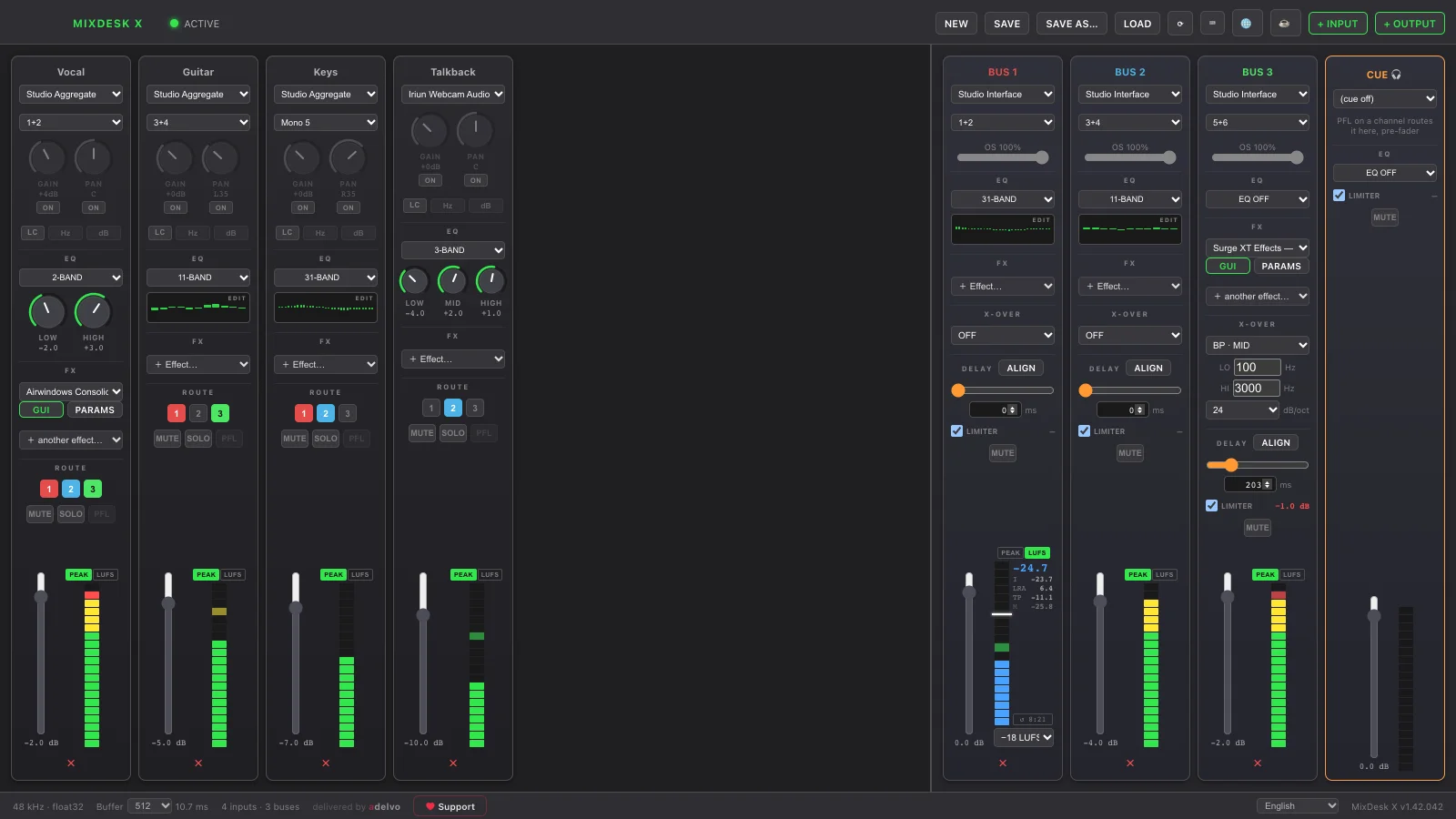
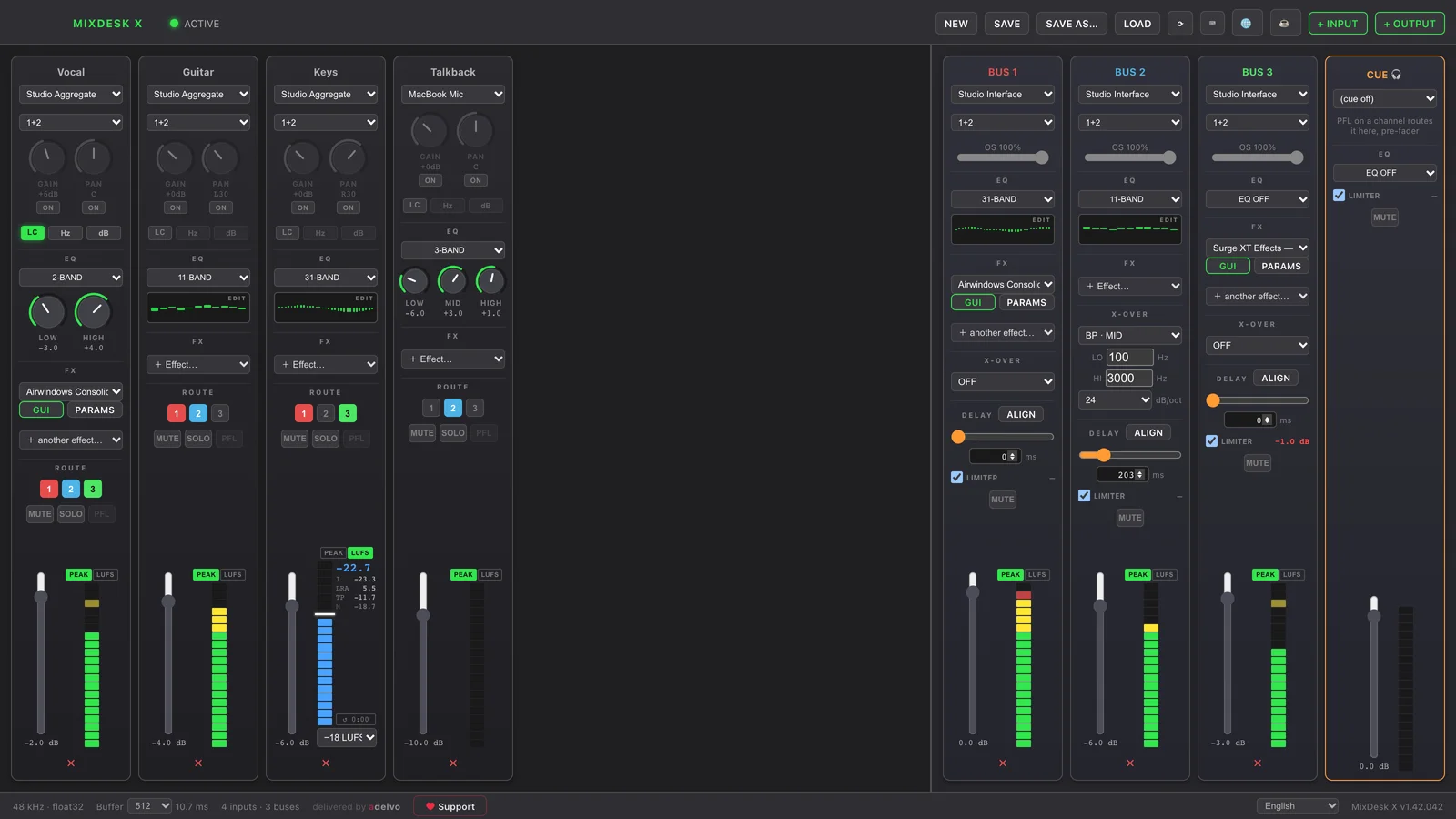
- A mixing console — a channel strip per source and per output bus, with gain, pan, EQ, effects, metering, mute/solo and a cue/headphone bus.
- A system processor — the “DriveRack” side: crossover, automatic delay alignment, feedback suppression, rumble filter, per-bus delay and a safety limiter, to make a PA or set of monitors sound tight.
Getting started
- First launch — license. A short freeware licence appears. Scroll to the bottom (you'll see “↓ Please scroll to the end to enable ‘I Agree’”) so the I Agree button activates. It only reappears if the licence text itself changes.
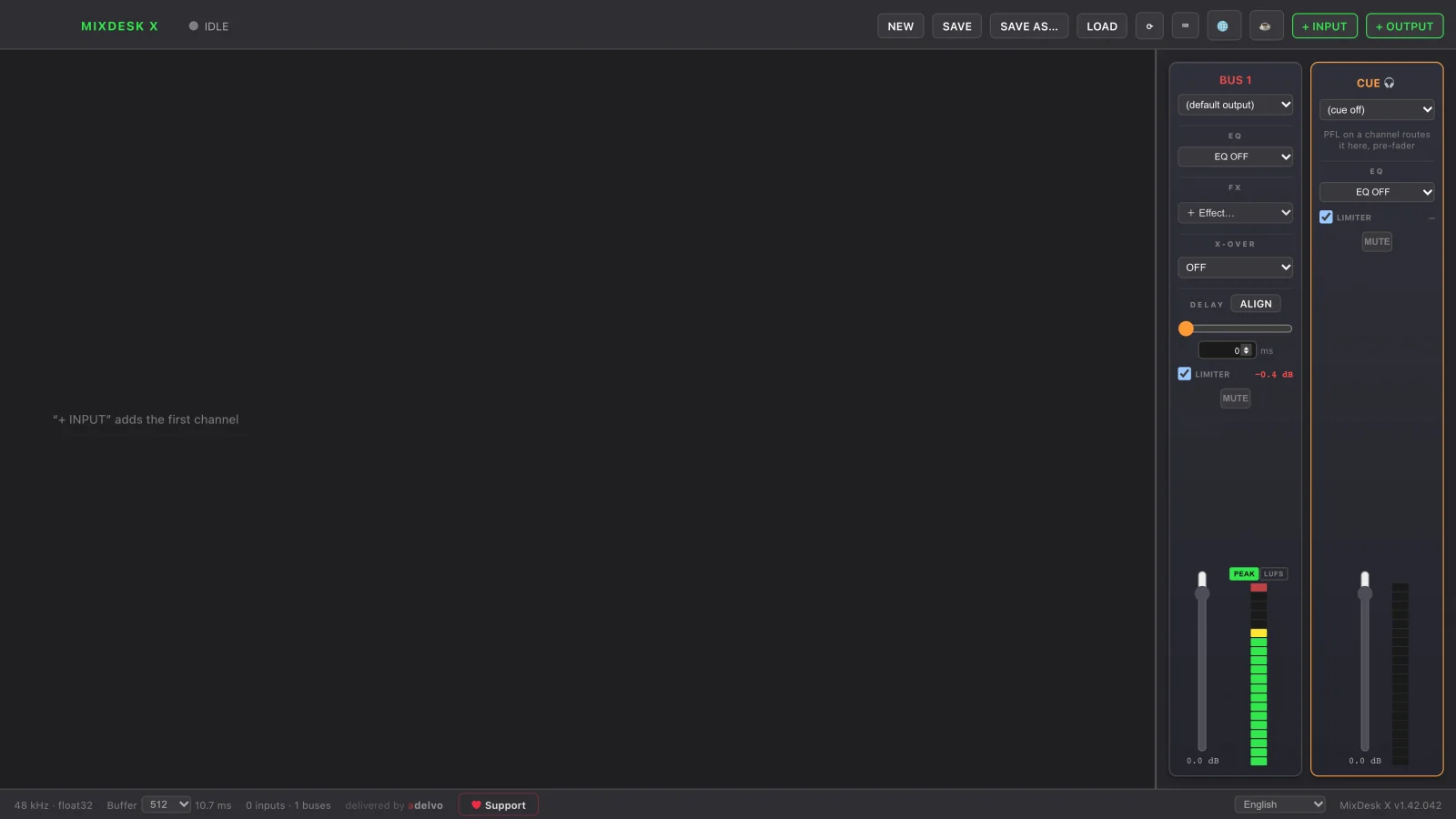
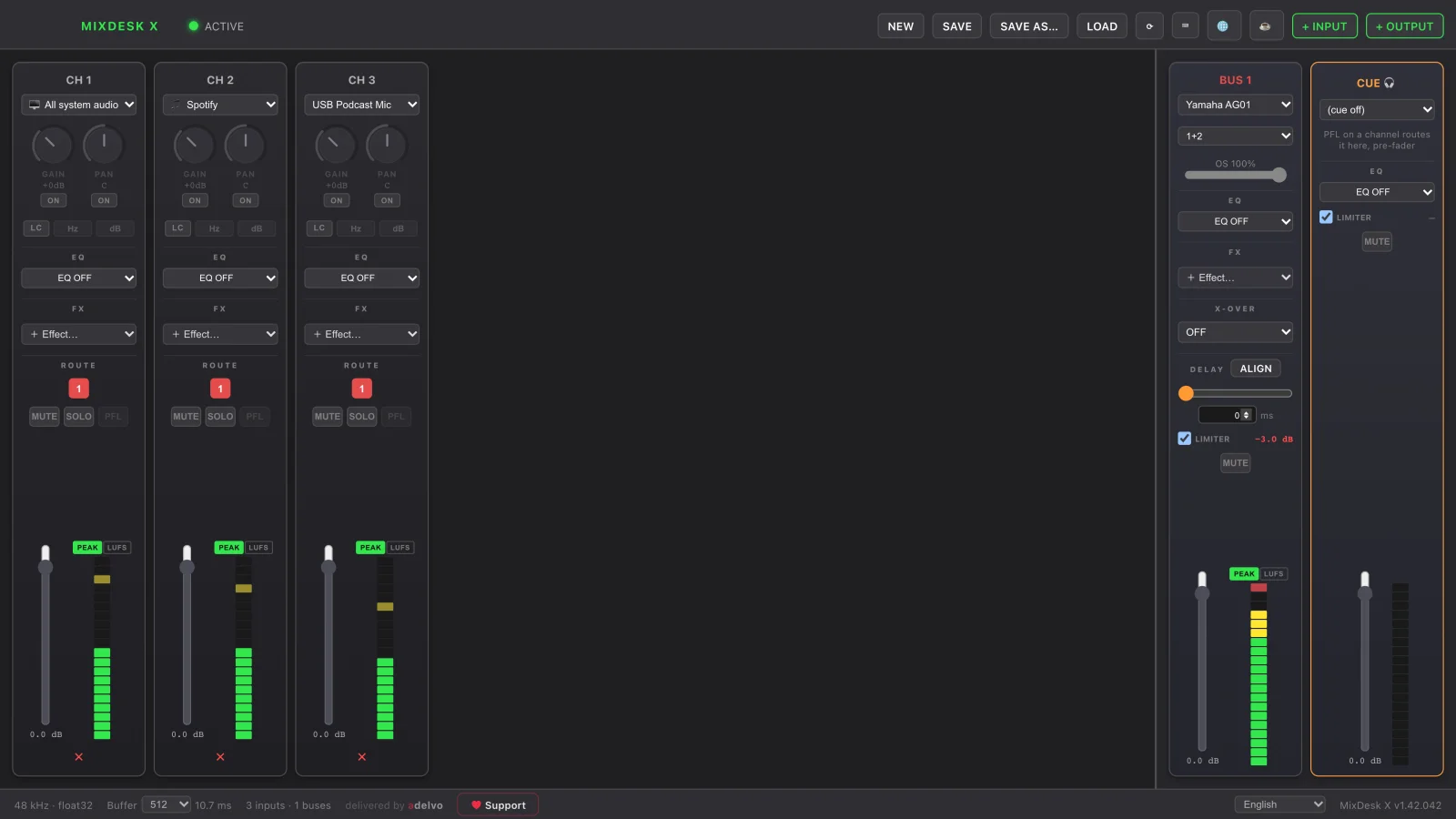
- You start with one empty output bus. The status pill top-right reads IDLE until you add a channel, then ACTIVE with a green dot.
- Add an input. Click + INPUT and pick a source (see Capturing audio).
- Choose the output. On the output bus, pick the device it should play to (your speakers, an interface, a DAC…).
- Route the input to the bus with the numbered ROUTE button on the channel.
Capturing audio
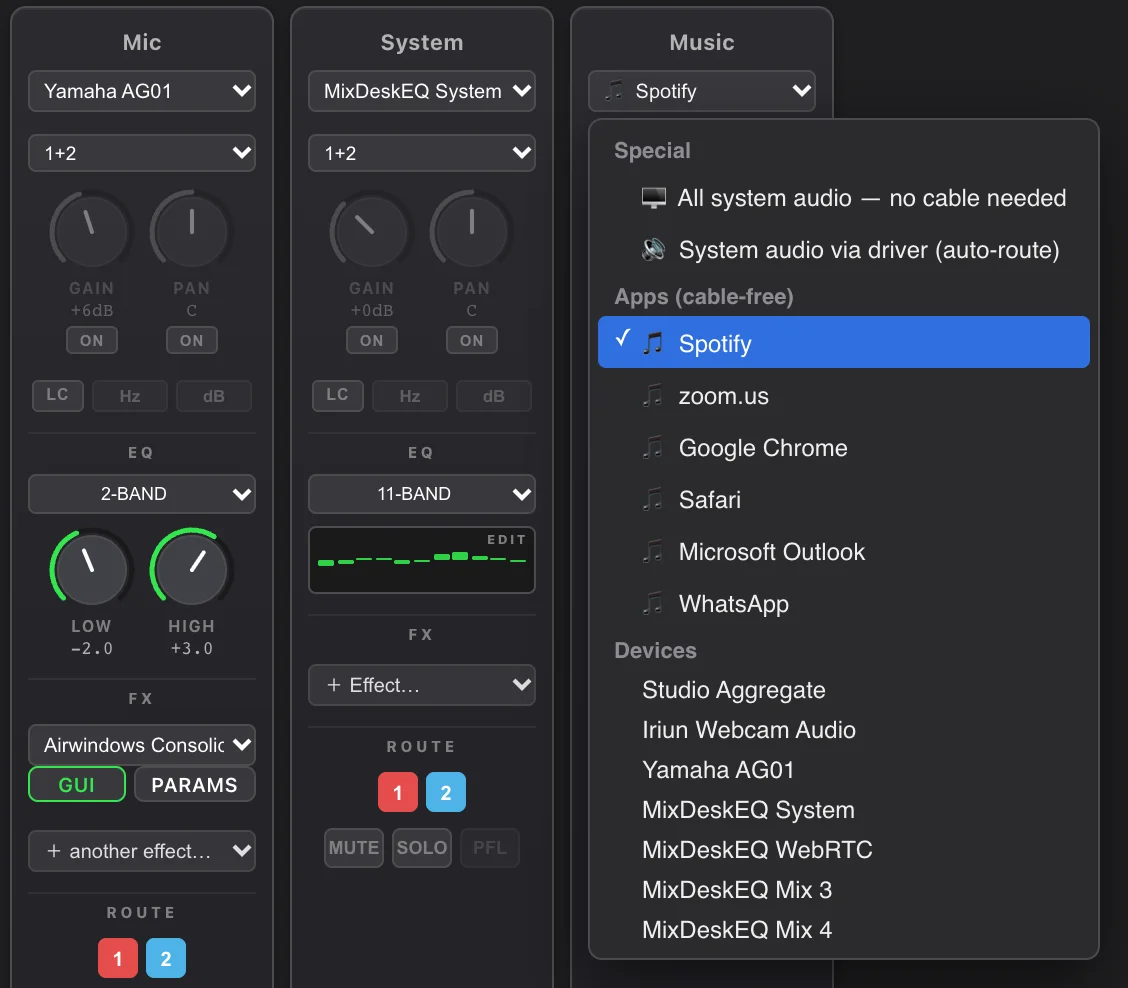
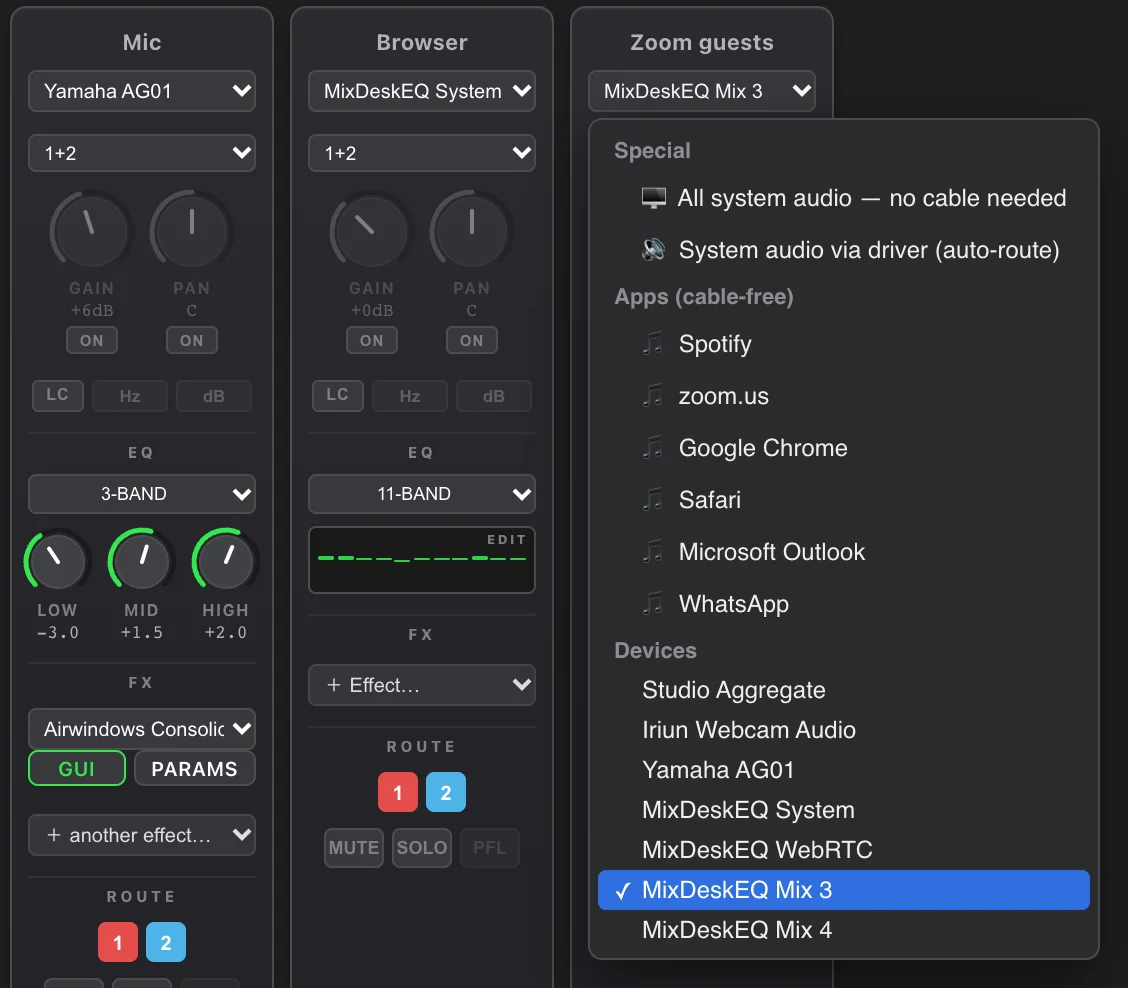
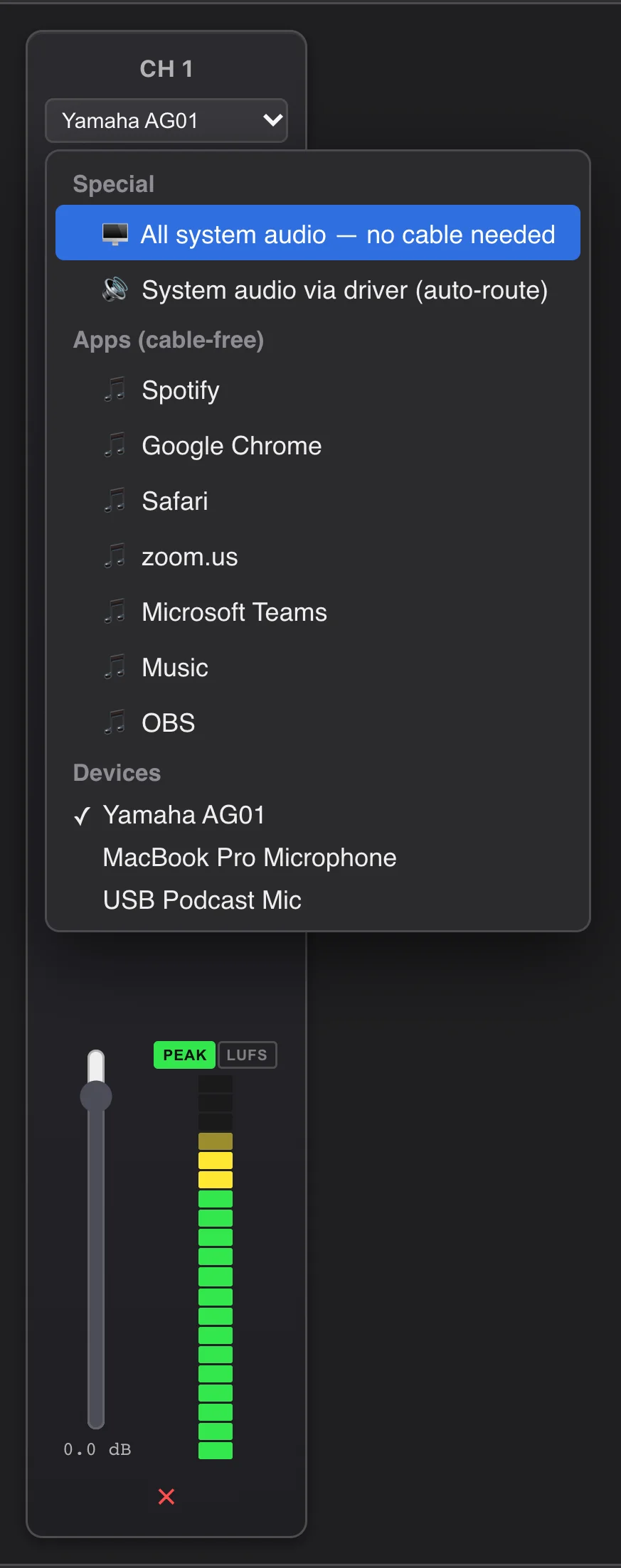
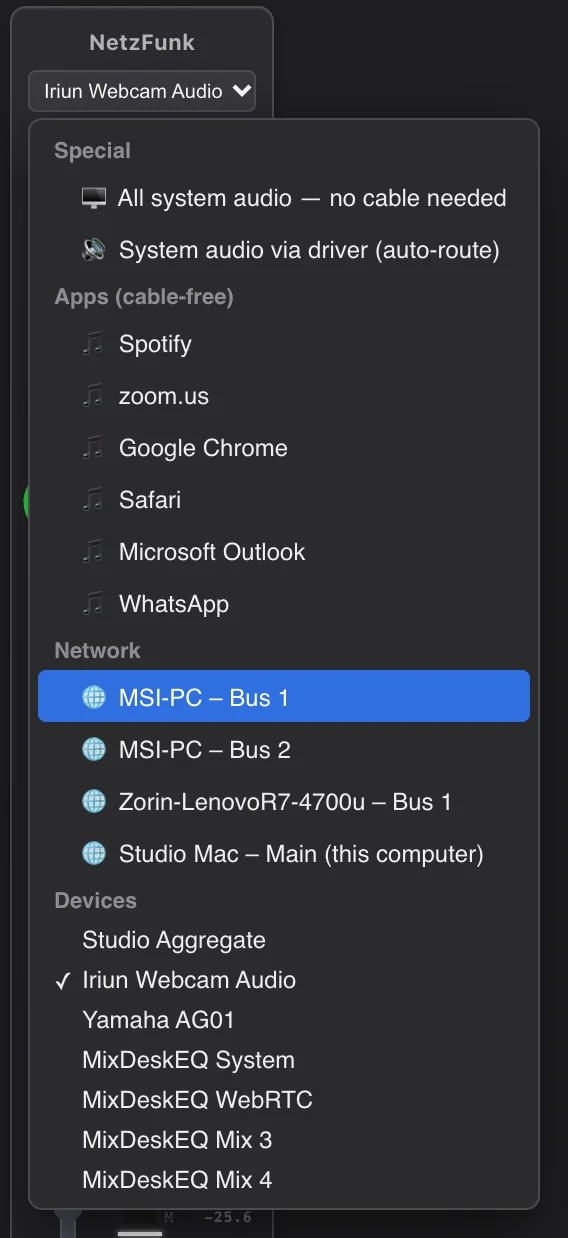
Each input channel has a source dropdown, grouped into Special, Apps (cable-free), Network (streams from other MixDesk X computers — see Network audio) and Devices.
Cable-free capture
- 🖥 All system audio — no cable needed — captures everything your computer plays, with no virtual cable and no feedback (Windows Process Loopback, excluding MixDesk X itself; macOS ScreenCaptureKit, excluding its own audio).
- Apps (cable-free) — pick a single running app (shown as 🎵 App name) to capture just that app.
Driver / cable route (silent tap)
- macOS — 🔊 System audio via driver (auto-route) sends the system output to the free MixDeskEQ System driver and captures its input side (no double audio, no feedback). If the driver isn't installed, MixDesk X points you to
github.com/adelvo-software/mde-audio-drivers. - Windows — 🔊 System audio via VB-Cable (auto-route) sets the default output to CABLE Input and captures CABLE Output. If VB-Cable isn't installed, MixDesk X points you to
vb-audio.com/Cable.
vb-audio.com/Cable) for the same cabled routing.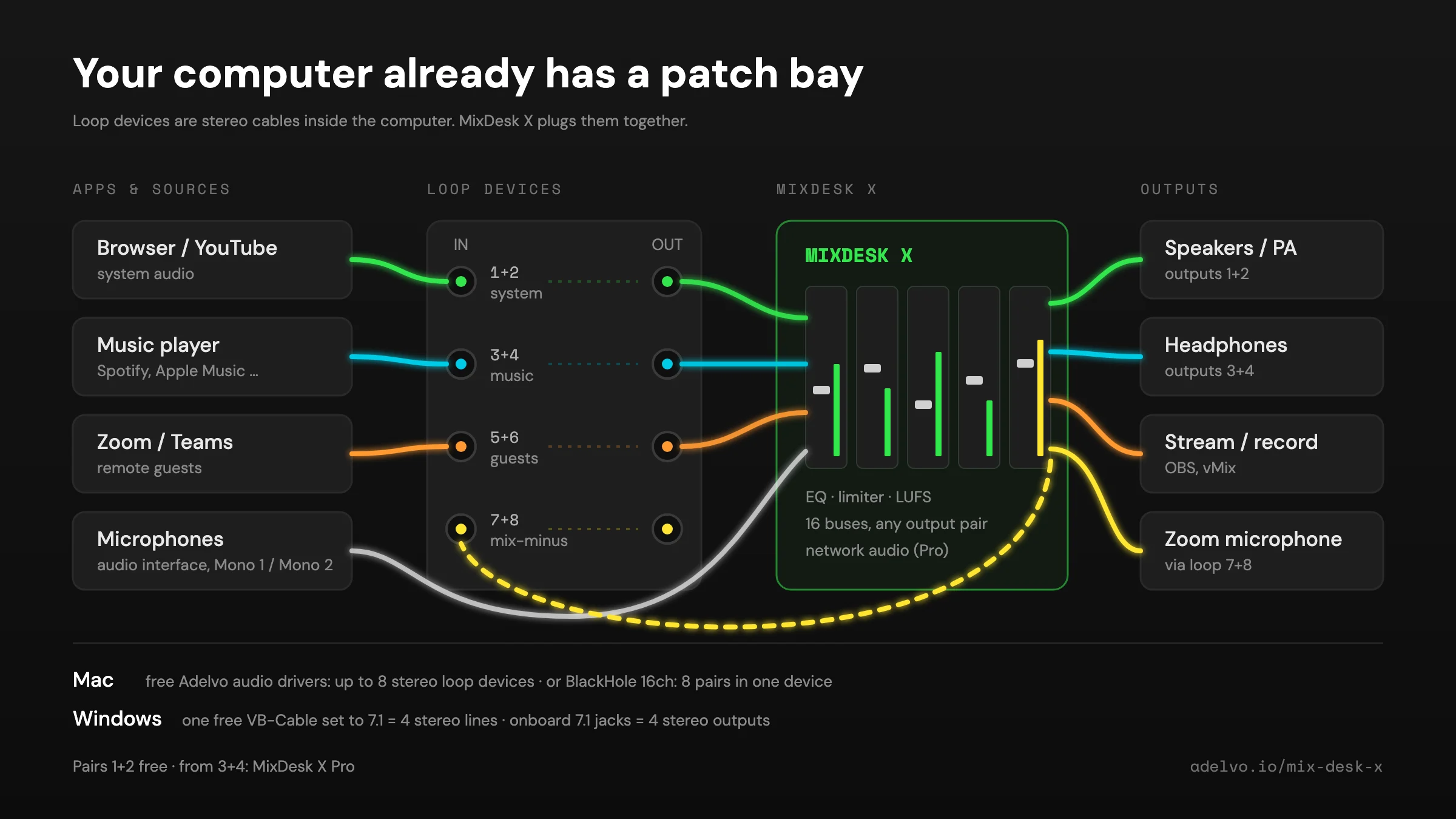
Hardware devices
Any input or loopback device shows under Devices. A device that disappears stays listed as ⚠ device missing and reconnects automatically when it returns.
Mac & Windows setup — get the full potential
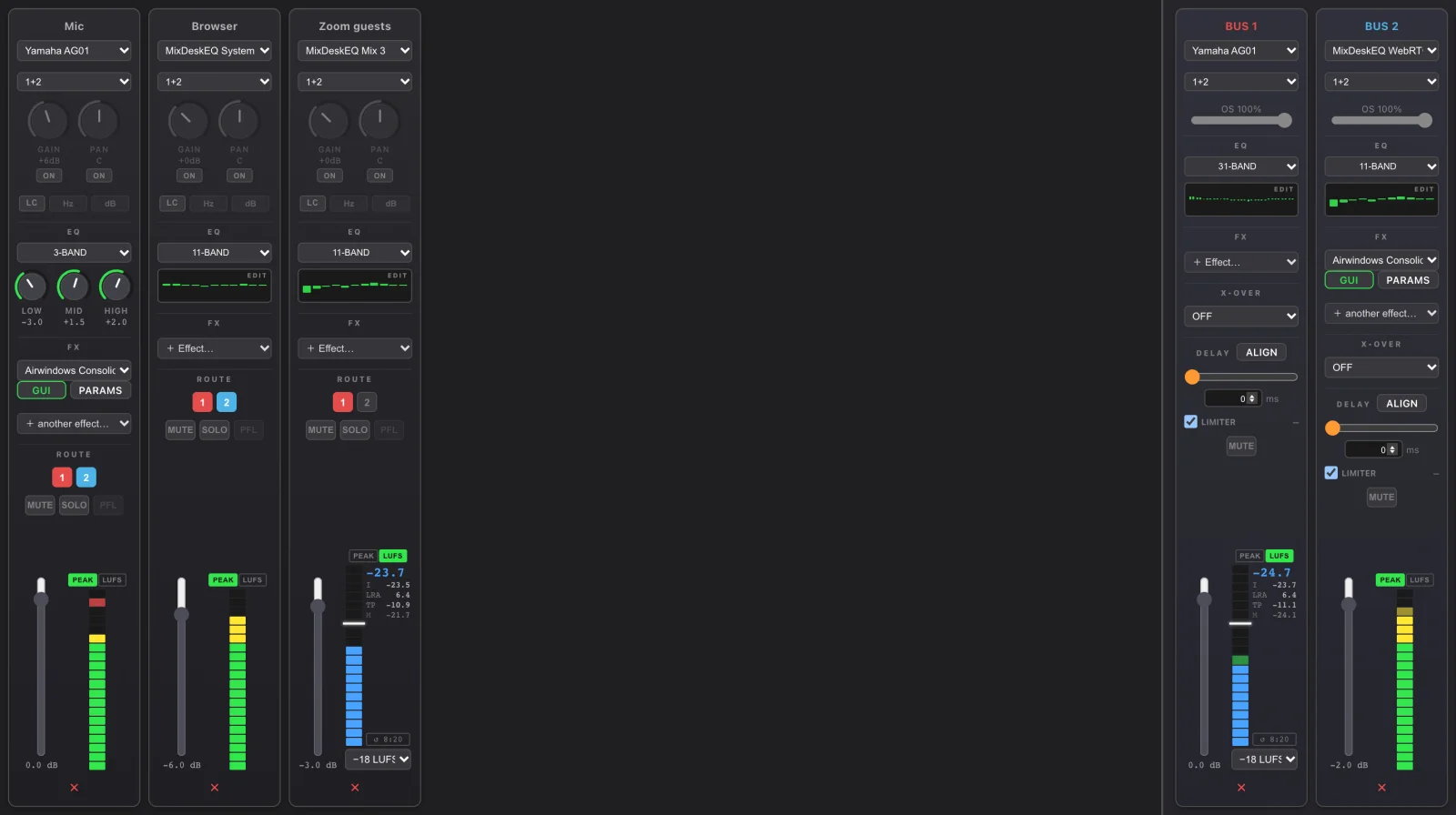
MixDesk X is a real processor, so its full power shows when each output bus goes to its own device — a second interface, a DAC, or a separate output — instead of everything sharing one. That's how you split subs and tops, run monitor sends, or feed a PA processed while your screen stays clean.
| macOS | Windows | |
|---|---|---|
| Capture the system silently | Install the free MixDeskEQ System driver, choose “System audio via driver”. | Install free VB-Cable, choose “System audio via VB-Cable”. (Or use cable-free Process Loopback and accept double audio.) |
| Per-app capture | Grant Screen Recording once (System Settings → Privacy & Security), then restart. | Works immediately, no permission. |
| Full processing chain | Route each bus to its own output device (interface / DAC / built-in). No extra DSP hardware needed. | |
libwebkit2gtk-4.0, so it targets Ubuntu 22.04-based systems (Zorin OS 17, Linux Mint 21, Ubuntu 22.04). Install it from the download folder with sudo apt install ./mixdesk-x-1.42.042-amd64.deb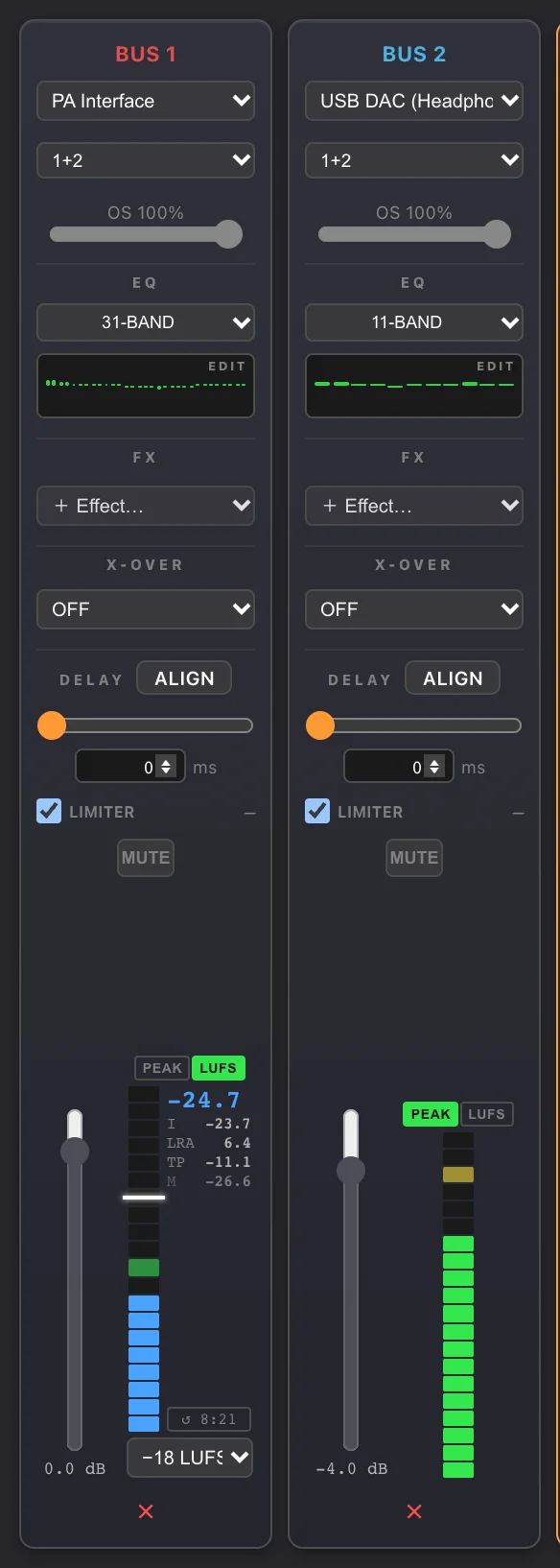

Top toolbar
| Button | What it does |
|---|---|
| NEW | Clear the mixer and start over with one empty bus. |
| SAVE | Save the current setup, overwriting the last file. Ctrl/⌘+S |
| SAVE AS… | Save to a new preset file. Shift+Ctrl/⌘+S |
| LOAD | Load a preset file from disk. |
| ⟳ | Refresh the device list (also rescans app sources and CLAP plugins). |
| ⌨ | Keyboard shortcuts, HTTP remote control and the Companion / Stream Deck export (left of + INPUT; green when shortcuts are assigned). See Remote control. |
| 🌐 | Network audio (MixDesk X Pro) — send buses to other MixDesk X computers and receive theirs. See Network audio. |
| ☕ | Keep the computer and display awake permanently. While network audio runs, MixDesk X keeps them awake anyway (switchable in the 🌐 dialog). |
| + INPUT | Add an input channel. |
| + OUTPUT | Add an output bus (up to 16). |
| PFL ✕ | Appears while any PFL is active — clears all PFL buttons at once. |


Input channel strip
- Name — double-click to rename (Enter commits, Esc cancels).
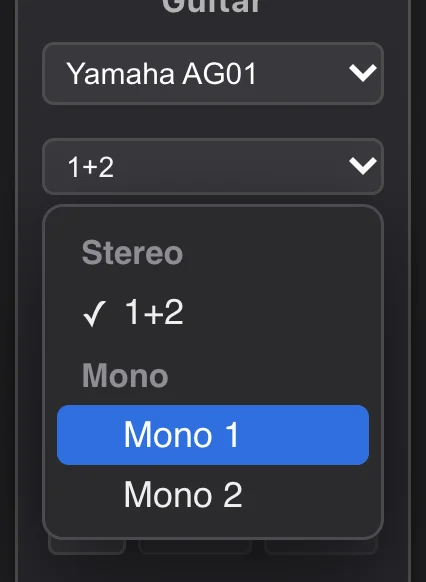
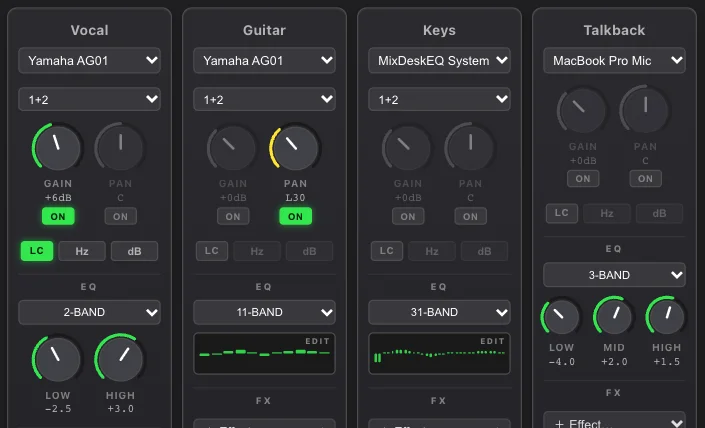
- Input on the device — a second menu next to the source, shown for devices with more than two inputs: a stereo pair (1+2, 3+4 …) or a single mono input. See Multichannel interfaces.
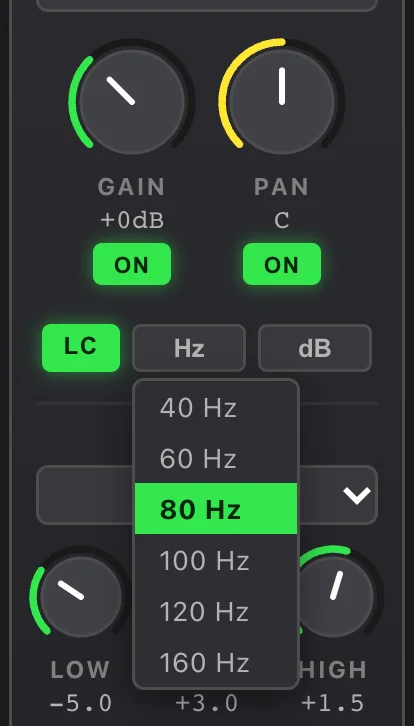
- GAIN knob (−20…+40 dB) with an ON toggle — gain is only in the path when ON is lit; otherwise clean passthrough.
- PAN knob (L100…C…R100) with an ON toggle — constant-power pan, active only when ON is lit.
- LC — low-cut / rumble filter (kills mic rumble and low feedback). Frequency 40/60/80/100/120/160 Hz (default 80), slope 12 or 24 dB/oct.
- EQ — per-channel equaliser, see EQ.
- FX — CLAP insert chain, see FX.
- ROUTE — one numbered button per bus; lights when the channel feeds that bus.
- MUTE · SOLO · PFL — mute, solo, and pre-fader listen to the cue bus (PFL needs a cue device selected; it's momentary and never saved).
- Fader (−60…+6 dB, double-click = 0 dB) with a numeric readout and a VU meter.
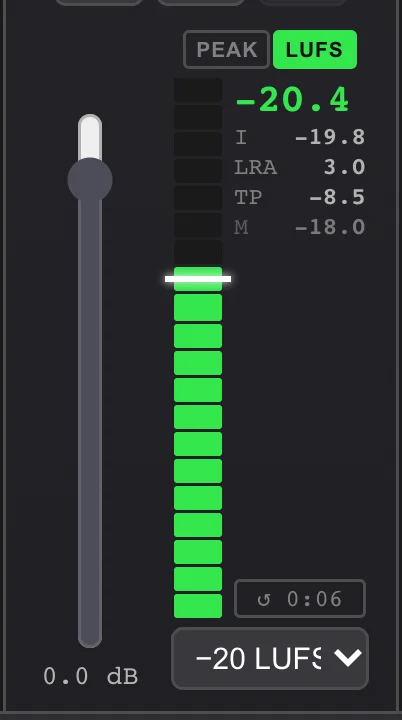
- PEAK · LUFS — switches the meter to a loudness meter (ITU BS.1770 / EBU R128), on channels and buses alike. It shows short-term loudness (3 s), I integrated since reset, LRA loudness range and TP true peak (4× oversampled). Pick a target below the meter: −18 (default: EBU alignment level, podcasts, PA), −20 (common stream spec), −23 (EBU R128 broadcast), −24 (ATSC A/85), −16 (podcasts) or −14 (YouTube / Spotify music). The bar turns green within ±1 LU of the target. ↺ resets integrated, LRA and true peak — press it at the start of a show.
- ✕ — remove the channel.

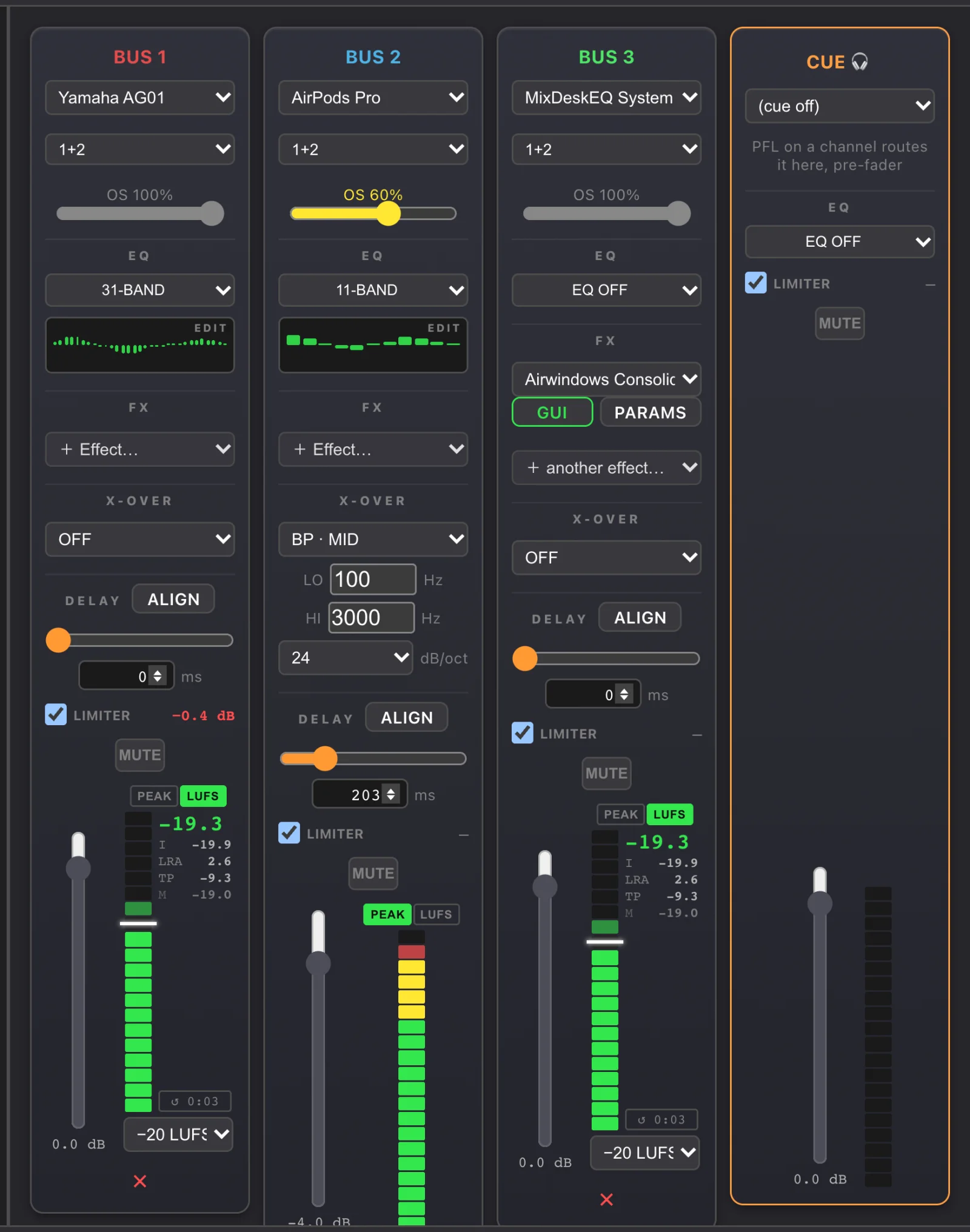
Output bus strip (up to 16)
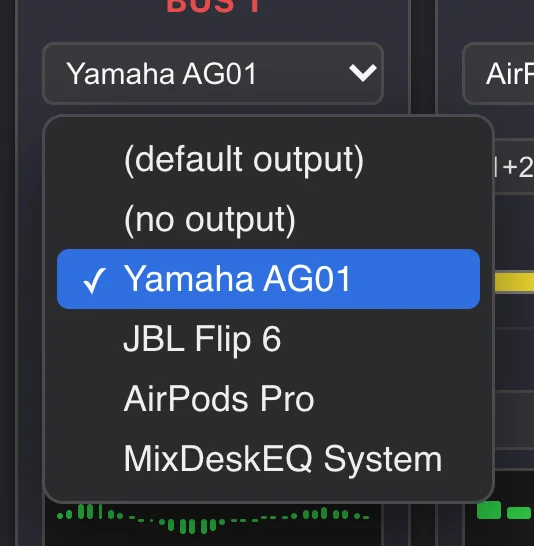
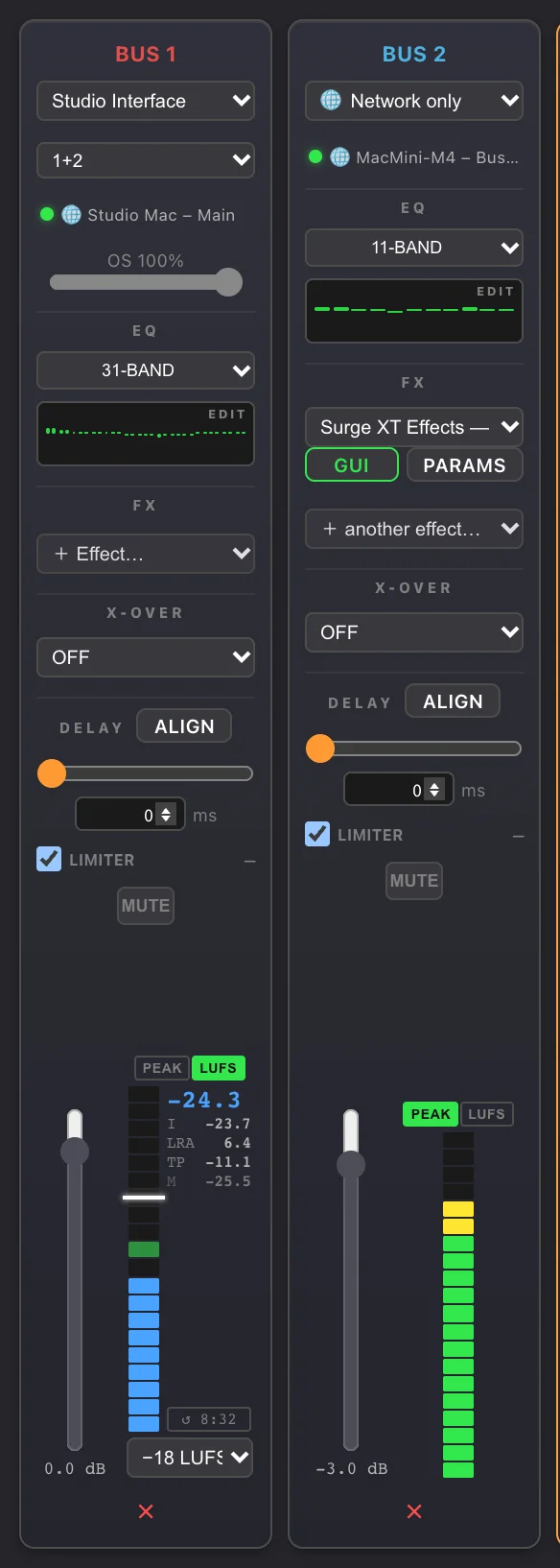
- Output device — (default output), (no output), or any hardware output. Each bus has its own independent device. A missing device stays listed and reconnects.
- Output on the device — on devices with more than two outputs, pick the output pair (1+2, 3+4 …) or a single mono output (left and right mixed onto one output). See Multichannel interfaces.
- OS n% — the operating-system volume for that device, sitting behind the bus fader. 100% = bit-transparent; double-click = 100%.
- EQ / FX — bus equaliser and CLAP chain.
- X-OVER — active crossover, see System processor.
- DELAY (0–1000 ms) + ALIGN — per-bus delay line and the automatic alignment wizard.
- LIMITER — safety/brickwall limiter (on by default) with a live gain-reduction meter.
- MUTE, fader (−60…+6 dB), VU meter, and ✕ to remove (hidden for the last bus).

Multichannel interfaces
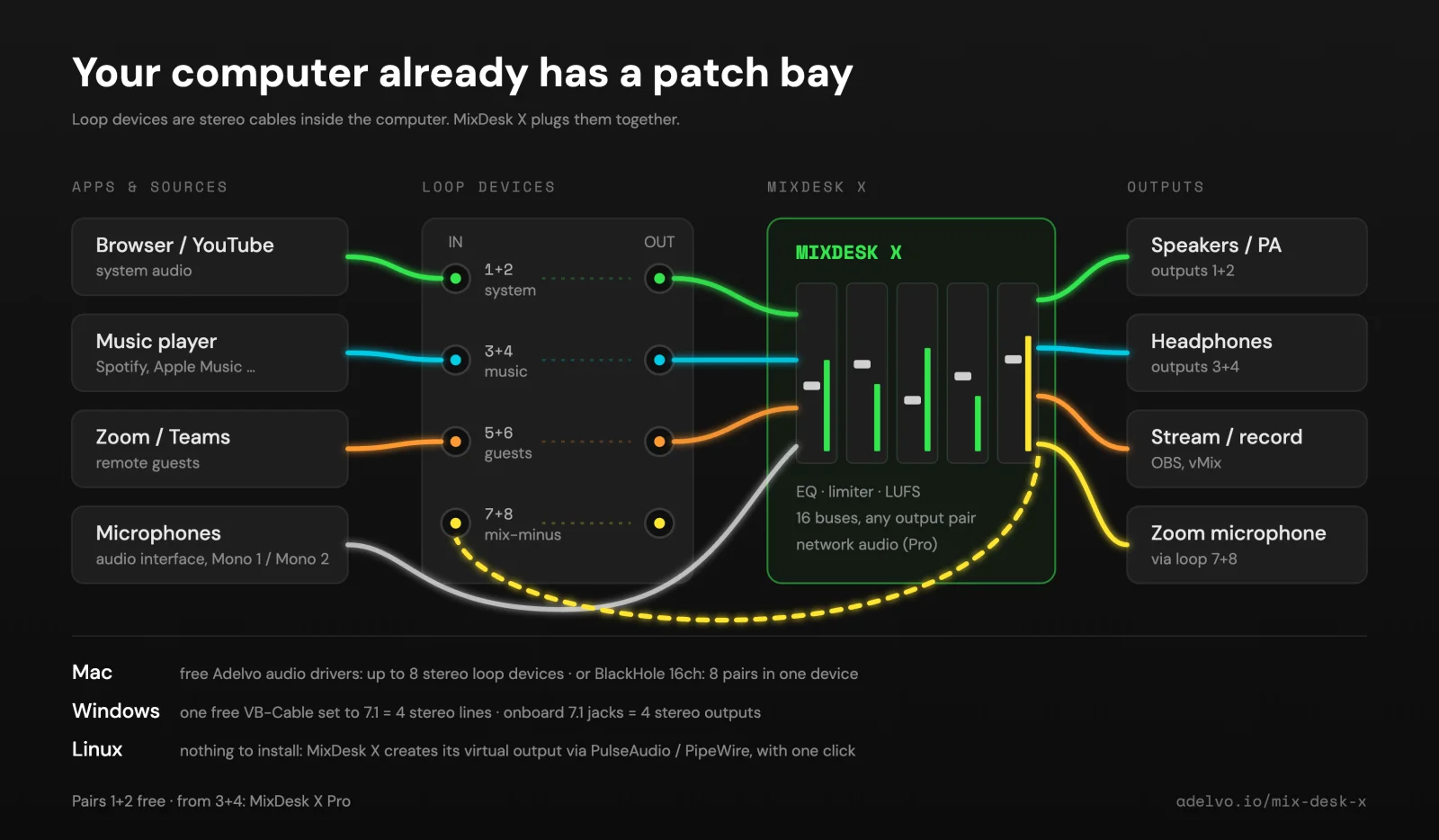
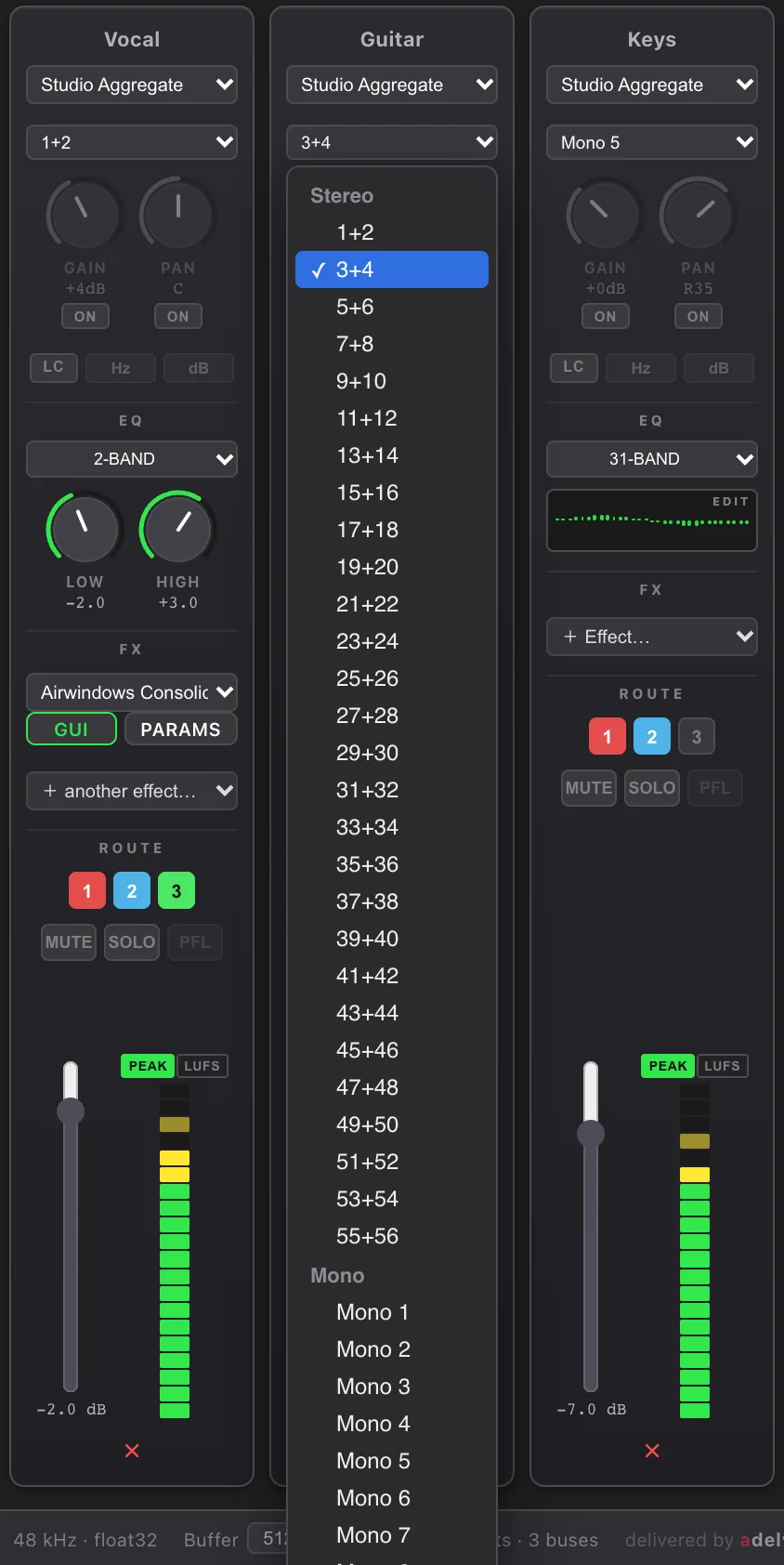
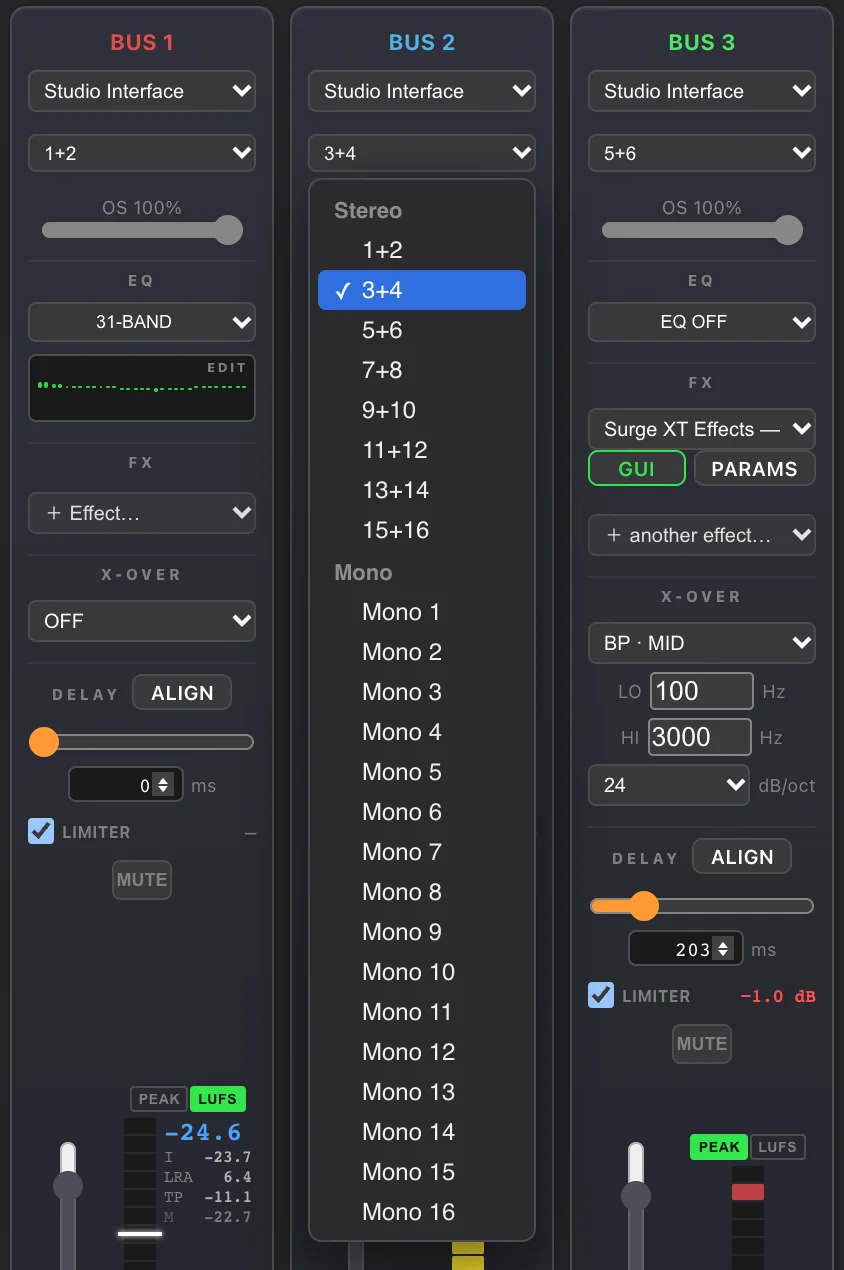
On interfaces and devices with more than two channels, every input channel picks its own input pair and every bus its own output pair — so one interface can carry the PA on 1+2, headphones on 3+4 and a stream on 5+6.
The channel menu
When a channel's source is a device with more than two inputs, a second menu appears next to it (Input on the device):
- Stereo pairs — 1+2, 3+4, 5+6 … up to all channels of the device.
- Mono — a single input, e.g. one microphone on input 5.
Tested with a 56-channel aggregate device.
The bus output menu
When a bus plays on a device with more than two outputs, a second menu next to the output device (Output on the device) picks the output pair or a single mono output. Mono mixes left and right onto that one output.
macOS: aggregate devices
In Audio MIDI Setup (Applications → Utilities) click + → Create Aggregate Device and tick the interfaces you want to combine. MixDesk X treats the aggregate like one big interface:
- All sub-devices are read and played, not only the first one — their channels simply continue the numbering (interface A = 1+2 …, interface B = the next pairs).
- Different sample rates: a sub-device running at another rate (for example a Bluetooth speaker at 44.1 kHz) is converted with a high-quality resampler.
- System volume: macOS gives an aggregate itself no volume control. The OS n% slider of a bus therefore follows the sub-device that actually plays the selected output pair.
Windows: VB-Cable as 4 stereo lines
Multichannel devices show all their channels on Windows too. The free VB-Cable becomes 4 stereo lines in one cable:
- Press Win+R, type
mmsys.cpland press Enter. - Playback tab: select CABLE Input → Configure → 7.1 Surround.
- Recording tab: set CABLE Output to 7.1 (8 channels) as well.
- Click ⟳ in MixDesk X. Both sides now offer 4 stereo pairs (1+2 … 7+8).
EQ, RTA & Auto-EQ
Every input channel, every output bus and the cue strip has its own EQ. Pick a mode from the dropdown:
- EQ OFF · 2-BAND (LOW/HIGH) · 3-BAND (LOW/MID/HIGH) — simple knob EQ, ±12 dB.
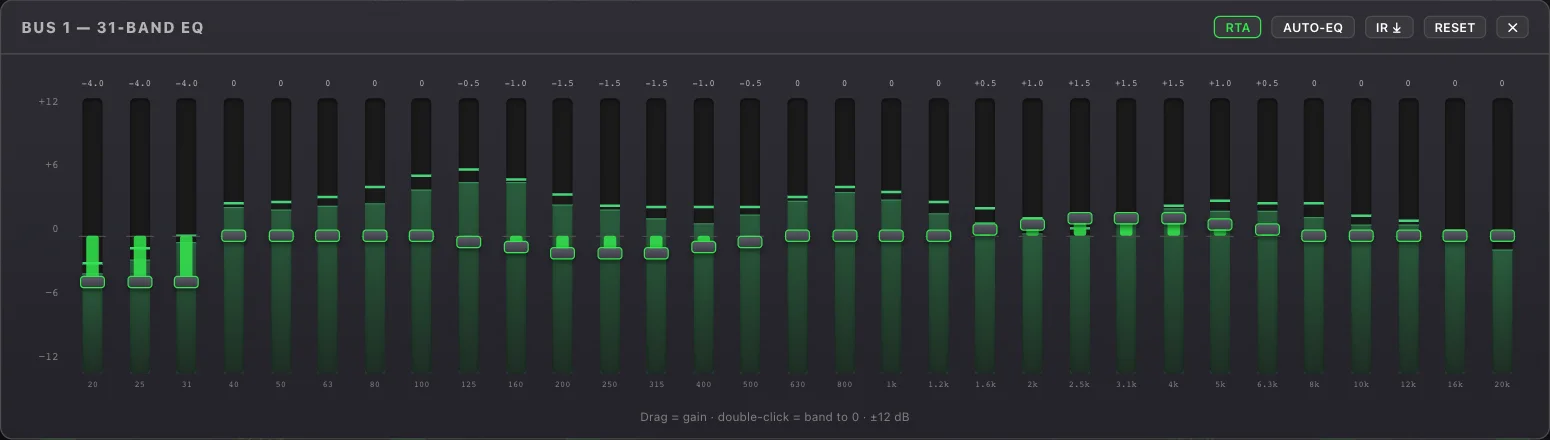
- 11-BAND · 31-BAND — the strip shows a mini curve with an EDIT label; click it to open the graphic EQ editor. Switching 11↔31 keeps the curve's shape.
Graphic EQ editor
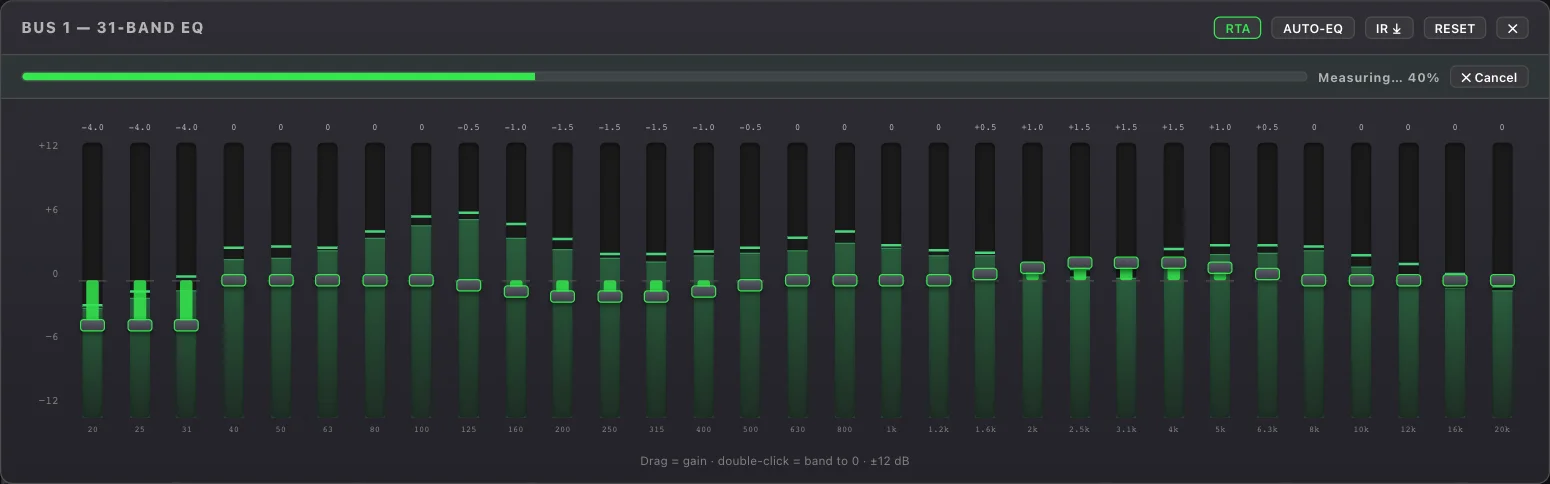
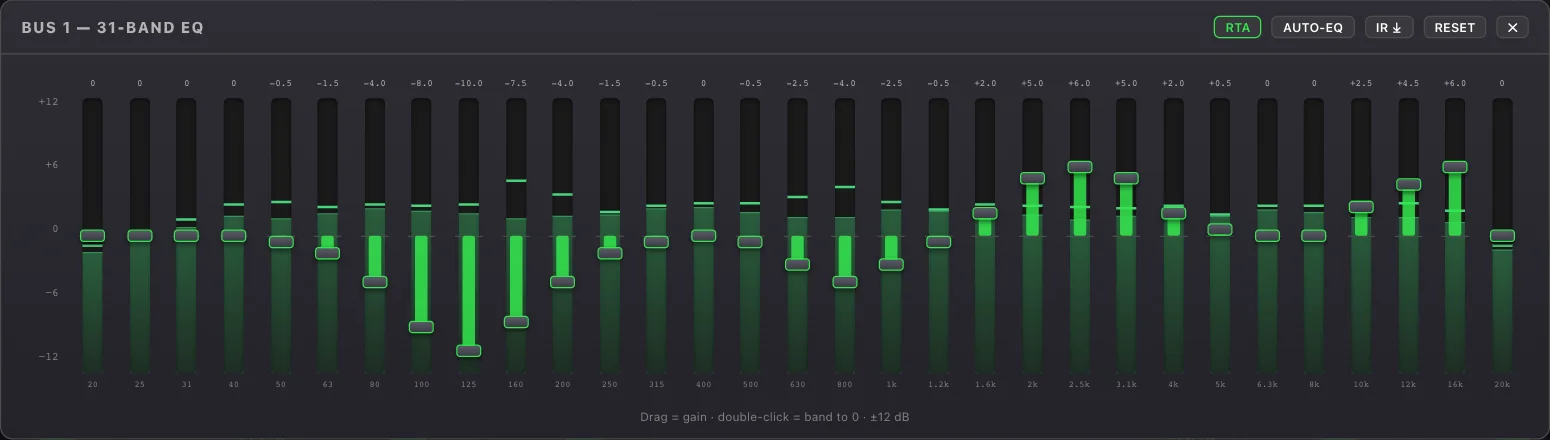
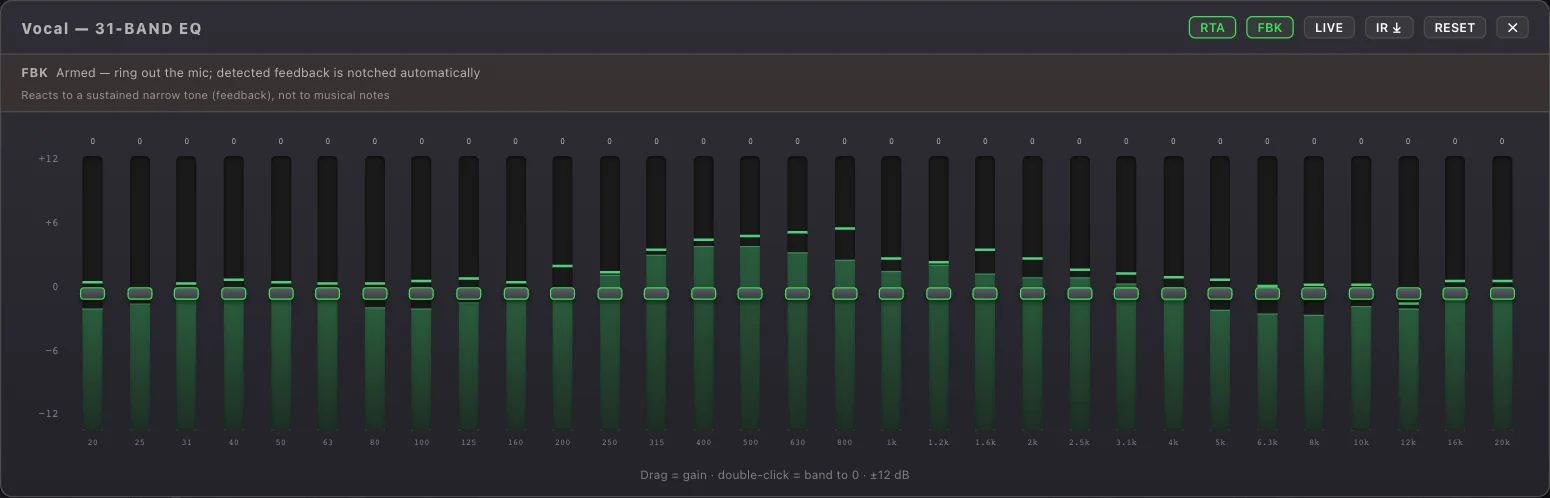
Drag a band to set its gain (±12 dB); double-click a band to zero it; RESET zeroes all. Two power tools live here (31-band):
- RTA — a live 1/3-octave real-time analyzer drawn behind the bands, so you see the spectrum you're shaping.
- AUTO-EQ (bus editors, when input channels exist) — one click: pink noise plays on the bus, is measured through a measurement mic channel you pick, and all 31 bands are set to flatten the response. Choose the mic, a duration (5/8/15 s) and level, then ▶ START.
Important: the measurement-mic channel must not be routed to the bus you're tuning, or you'll measure the mic feeding back into itself.
- 🎤 CAL — load a mic calibration file (UMIK / REW format) so the RTA and Auto-EQ read your specific measurement mic correctly.
IR export (MixDesk X Pro)
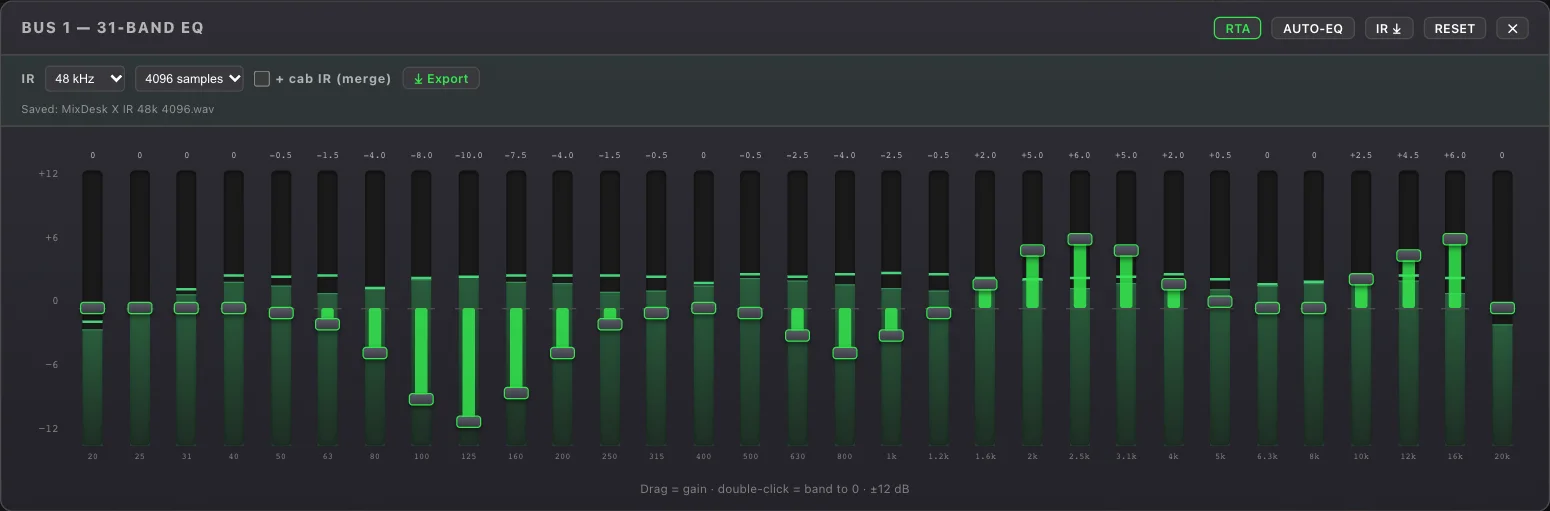
For guitarists and anyone with an amp modeler or IR loader: measure a speaker with AUTO-EQ and export the correction as an impulse response. The correction then runs inside the modeler or IR loader with no extra latency — MixDesk X is no longer in the signal path.
- Open the 31-BAND EQ of the bus that plays the speaker and measure it with AUTO-EQ and a measurement mic (load its calibration file with 🎤 CAL) — see Auto-EQ.
- Click IR ⤓ in the editor's header.
- Choose the sample rate (44.1 / 48 / 96 kHz) and the length (1024–8192 samples), then ⤓ Export and pick where to save the WAV.
Two ways to use it
| Your loader | What to do |
|---|---|
| Two IR slots | Export the correction alone and load it into the second slot, after the cab IR. |
| One IR slot | Tick + cab IR (merge) and pick your existing cab IR. The correction is merged into it and saved as one IR at the cab IR's sample rate. Your original file stays untouched. |
Output: 24-bit mono WAV, minimum phase, peak ≤ −1 dBFS.

The software DriveRack — active crossover, Auto-EQ, delay align, anti-feedback
Active crossover (X-OVER)
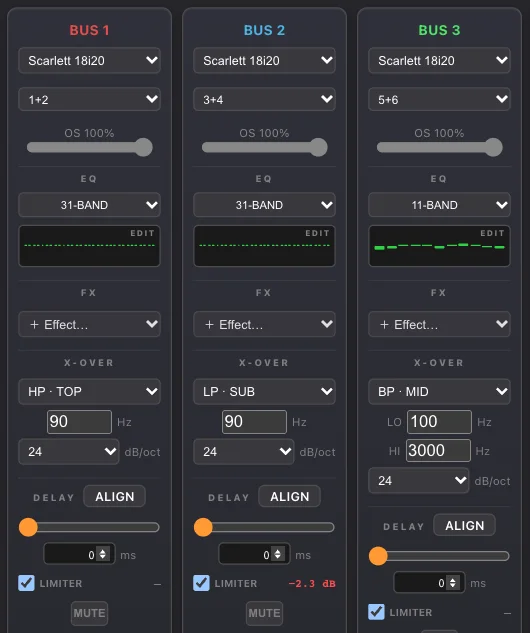
An active Linkwitz-Riley crossover per bus — the Aktivweiche. Modes: OFF, LP · SUB (low-pass → subs), HP · TOP (high-pass → tops), BP · MID (band-pass → mids). Set the frequency (BP has a low and high edge) and slope (12/24/48 dB/oct). Split the ways across separate buses — e.g. one bus low-passed to the subs, another high-passed to the tops, each on its own output.
Per-bus delay & automatic ALIGN
DELAY sets a delay line of 0–1000 ms on the bus (double-click = 0). Use it to time-align a distant speaker, or to line up subs with tops.
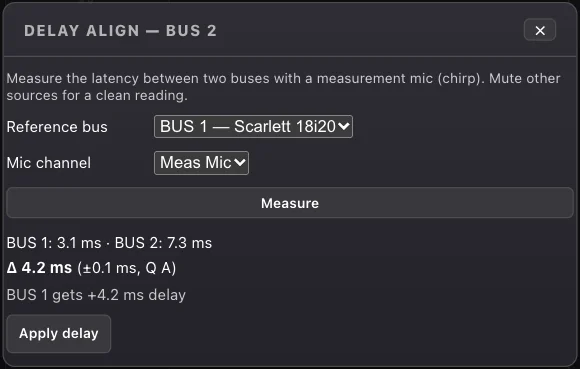
ALIGN does it for you: it plays a chirp alternately through a reference bus and the target bus, measures the arrival of each through a mic channel, and reports each bus's time plus the difference (Δ). Apply delay adds exactly the delay needed to the earlier bus — only when you click it (no hidden automation).
Safety limiter
Each bus has a brickwall LIMITER (on by default) with a live gain-reduction meter — your protection against clipping and surprises.
Feedback destroyer (FBK)
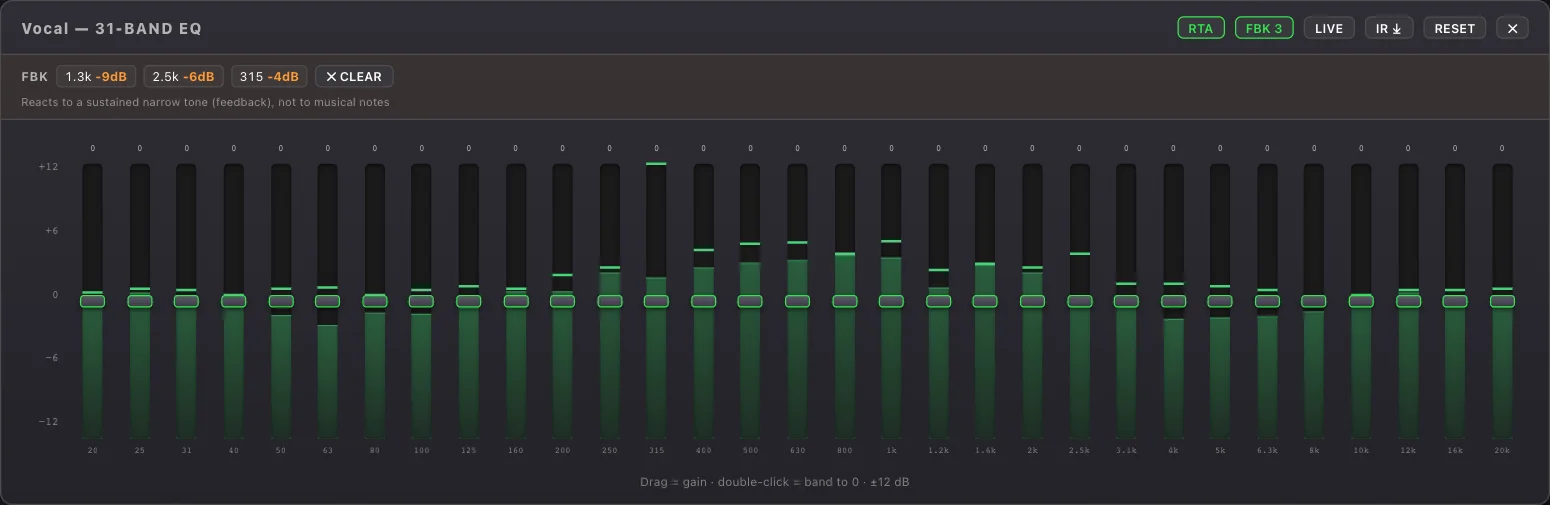
In an input channel's 31-band EQ editor, the FBK button arms the feedback destroyer. It listens for sustained ringing and drops a narrow notch on each feedback frequency automatically.
- LIVE — adaptive notches that release when it's quiet again.
- FIXED — notches stay put (ring the system out at soundcheck, then lock them).
- Detected notches appear as chips (e.g.
1.2k −9dB); ✕ CLEAR removes them.
Cue / PFL / headphone output
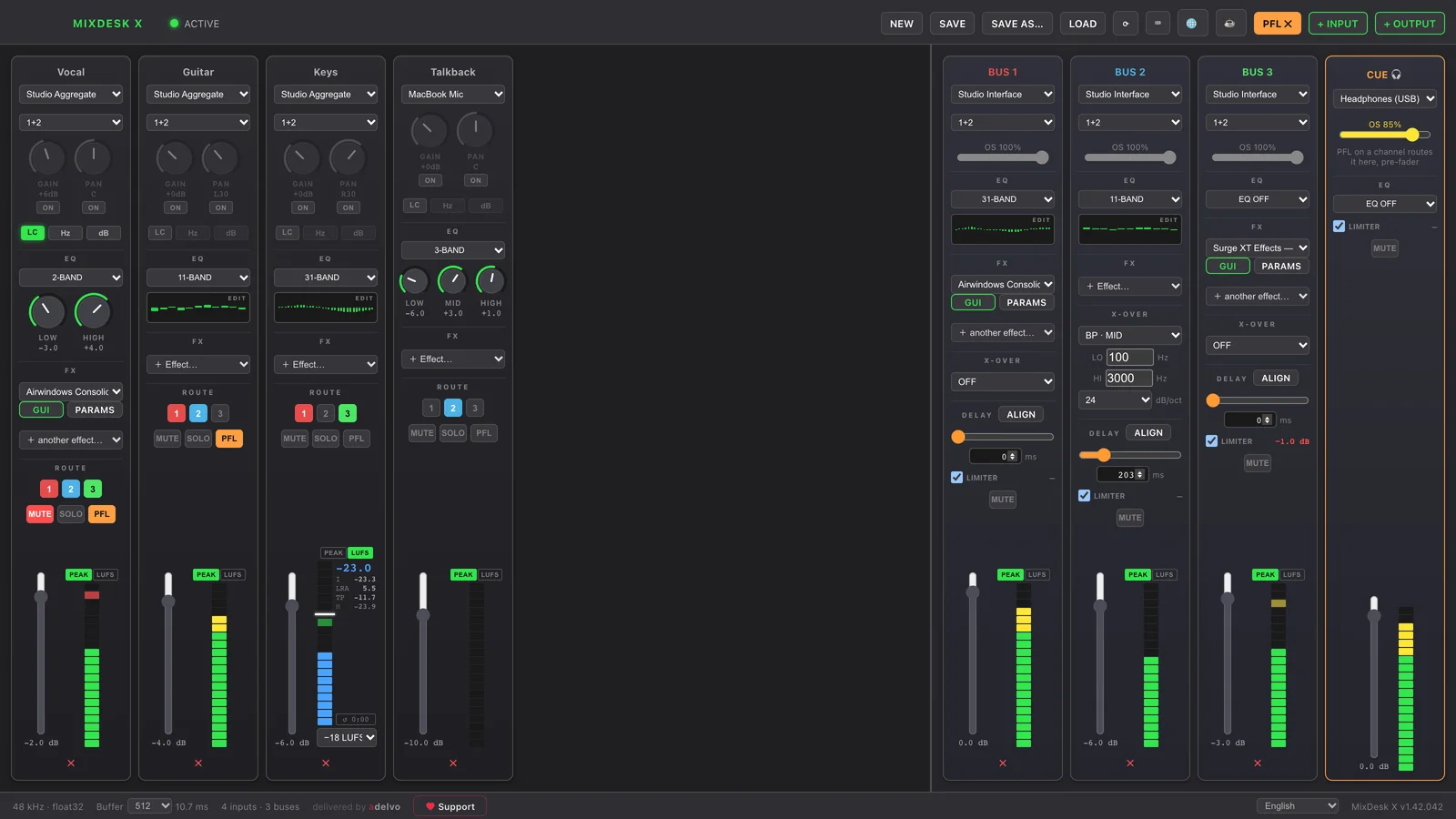
The CUE 🎧 strip on the right is a dedicated monitor/headphone output — not a bus. It plays any channel whose PFL button is engaged, pre-fader (so you can audition a source even while it's muted in the mix).
It has its own output device, OS-volume, correction EQ, safety limiter, mute and meter. Delay and FX are deliberately left out so the monitor path stays uncoloured. If the cue device is also used by a bus, MixDesk X warns you'll hear it twice.

CLAP effects (FX)
Every input channel and output bus has an FX insert chain — multiple slots processed in series, after the EQ.
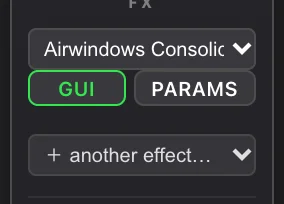
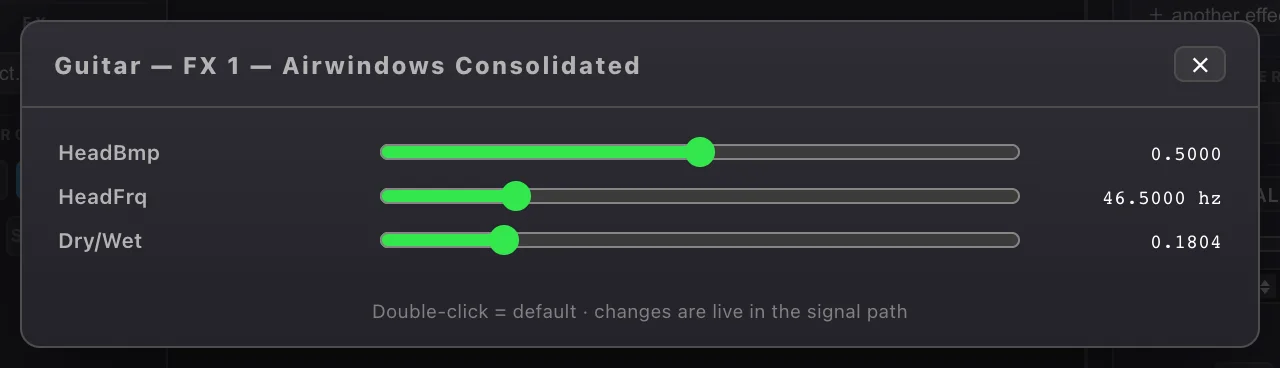
- Each slot: pick a plugin (shown as name — vendor), open its native GUI if it has one, or edit values in PARAMS (one slider per parameter; double-click = the plugin's default).
- ➕ Install free effects (Airwindows) — one click downloads and installs a free CLAP pack of ~400 effects.
- Full plugin state — including edits made in the native GUI — is stored in your preset when you save.

Presets
A preset stores your whole setup: every channel (source, gain/pan, EQ, FX, low-cut, routing, mute/solo), every bus (device, EQ, crossover, delay, limiter, FX) and the cue strip. Manage them with NEW / SAVE / SAVE AS… / LOAD. On startup the last preset reloads automatically.

Remote control — hotkeys, HTTP, Stream Deck
Everything sits behind the small ⌨ button in the top toolbar, left of + INPUT. The dialog has three tabs.
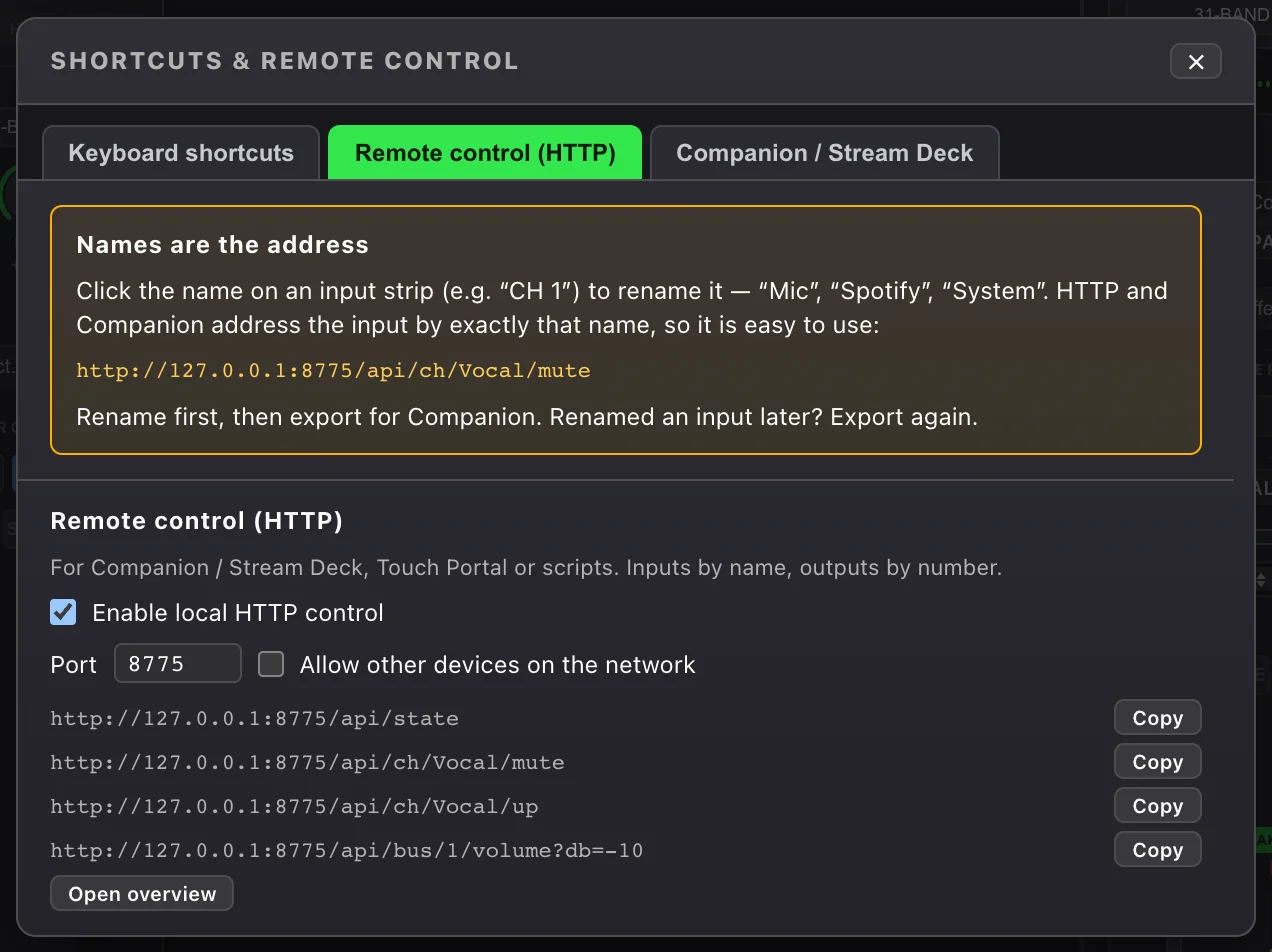
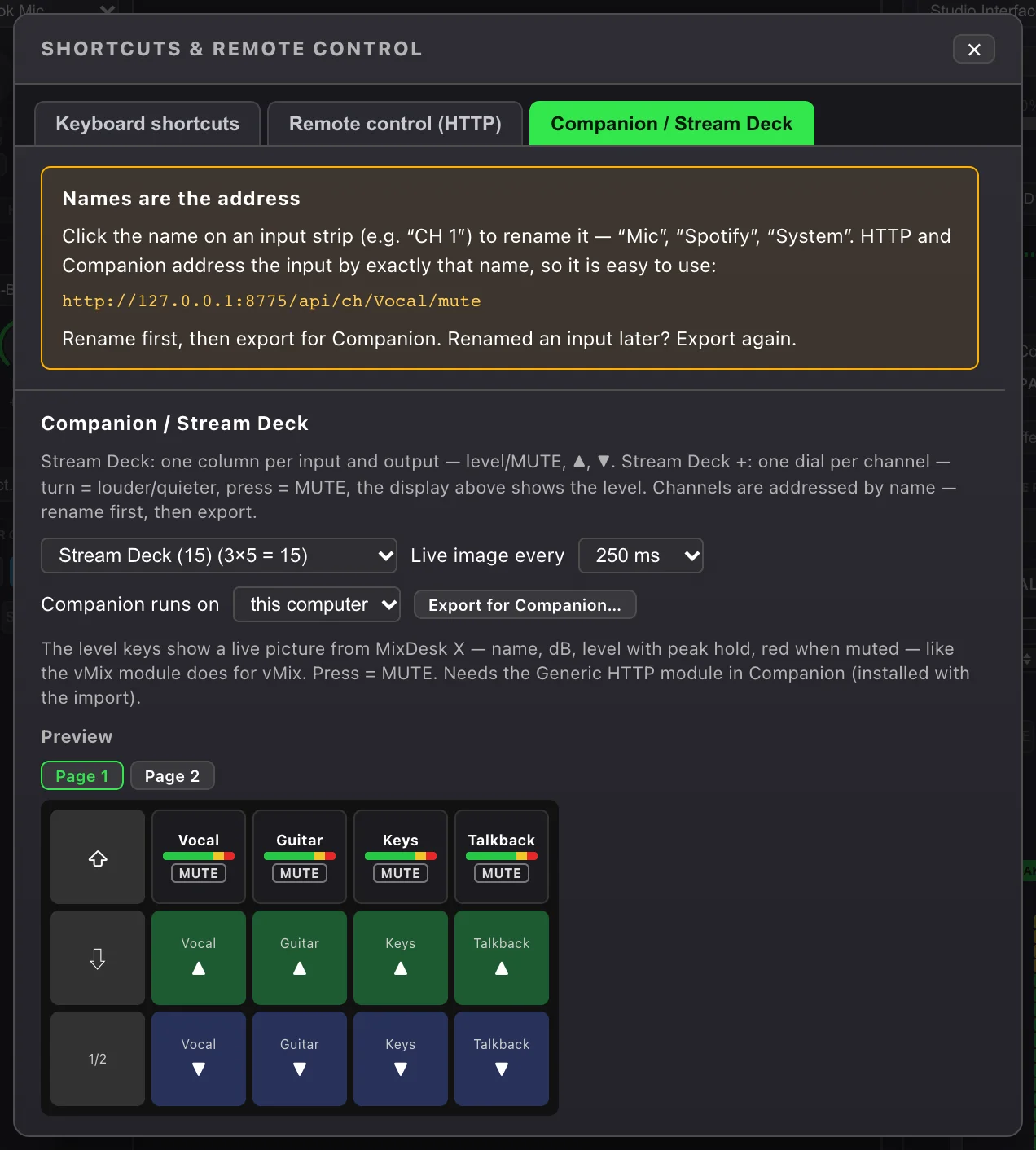
http://127.0.0.1:8775/api/ch/System/mute. Rename first, then export. Rename an input later and you need to export again. Keyboard shortcuts are not affected by renaming.Keyboard shortcuts
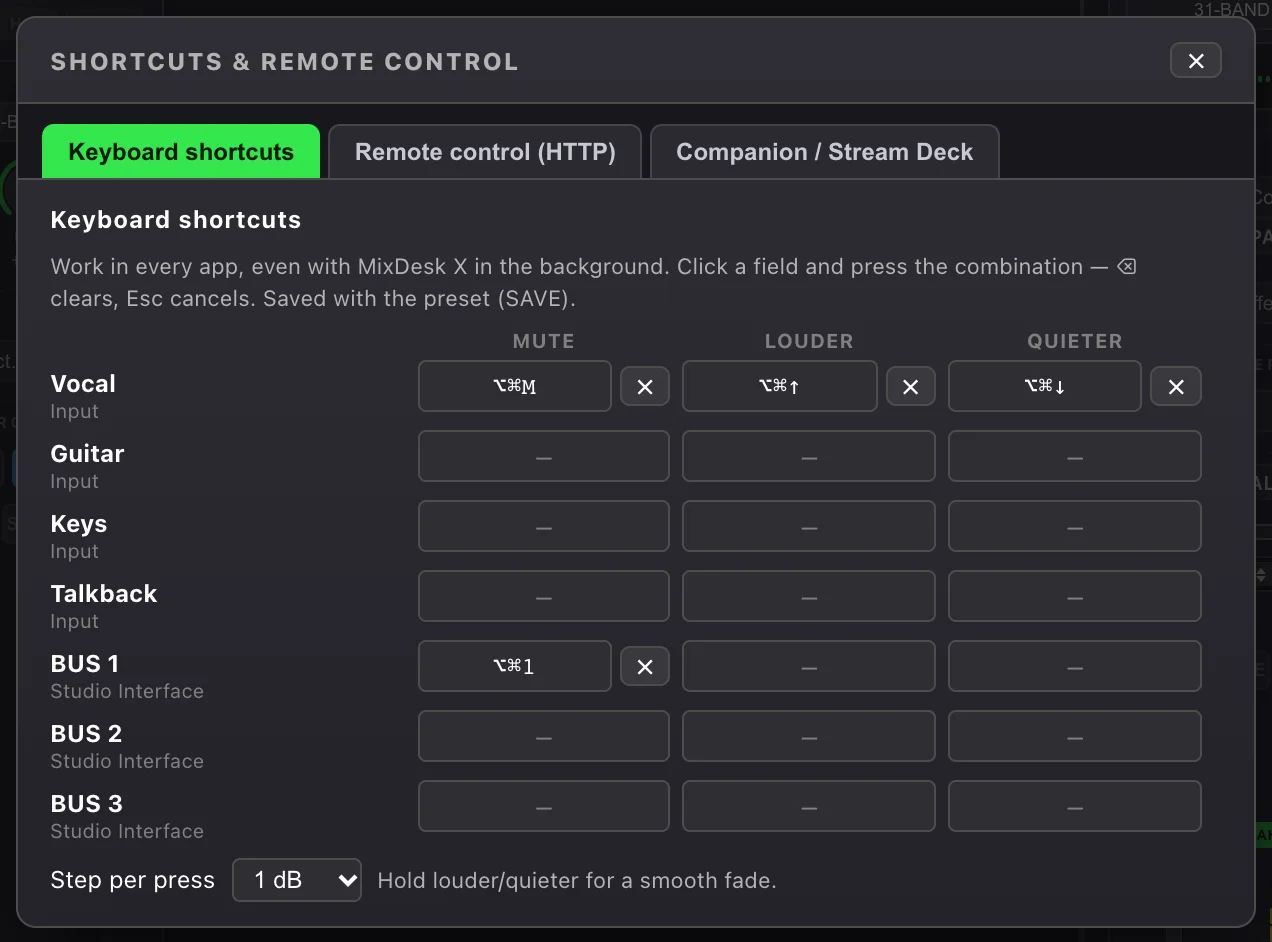
- For every input and output: Mute, Louder, Quieter. Nothing is assigned out of the box.
- Click a field and press the combination; ⌫ clears it, Esc cancels. A global shortcut needs ⌃ or ⌘ on the Mac, Ctrl or Alt on Windows — otherwise it would block typing in every other app.
- They work in every app, even with MixDesk X in the background. Hold Louder/Quieter for a smooth fade; the step per press is adjustable (0.5–6 dB).
- If another app already uses a combination, the field says so. macOS needs no Accessibility permission.
- Shortcuts are saved with the preset (SAVE).
HTTP control
Off by default and only reachable from this computer. Switch it on in the Remote control (HTTP) tab; port 8775 by default. Tick Allow other devices on the network to use it from another PC, a tablet or Companion on a different machine — there is no password, so only in networks you trust.
| Request | What it does |
|---|---|
/api/state | All inputs and outputs with fader, mute and level (JSON). |
/api/ch/System/mute | Toggle mute. ?on=1 / ?on=0 to set it. |
/api/ch/System/up · /down | One step louder / quieter. ?db=3 for a custom step. |
/api/ch/System/volume?db=-10 | Set the fader (−60 … +6 dB). |
/api/bus/1/mute … | The same for outputs, by number (BUS 1 = 1). |
/api/img/ch/System.png | Live key image (name, dB, level with peak hold, red when muted) — used by the Companion export. |
Inputs can also be addressed by their internal ID (shown in /api/state). The address / shows a short overview.
Companion / Stream Deck export
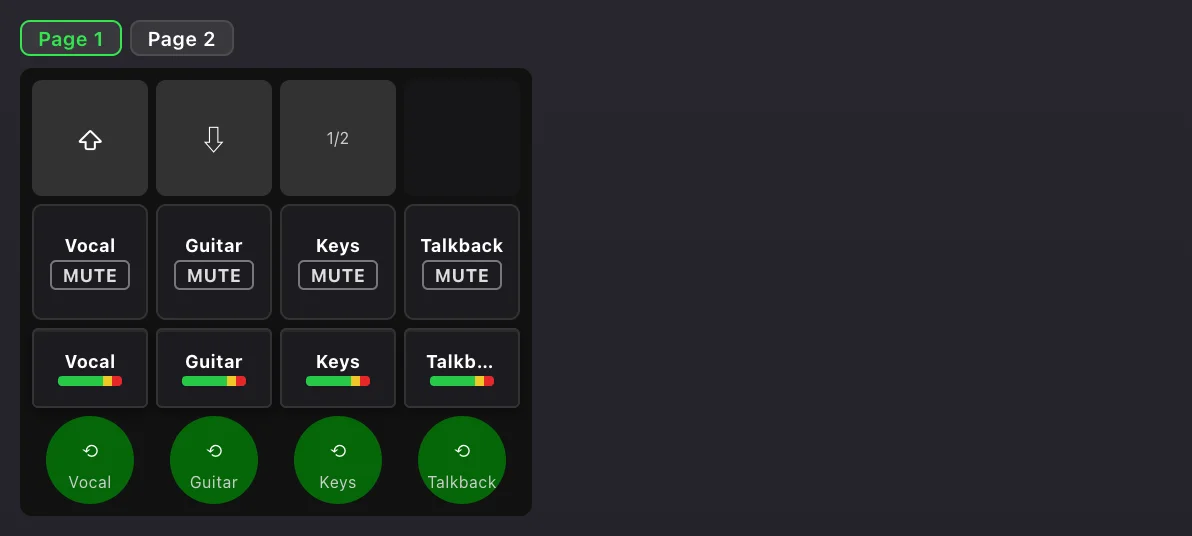
- Pick your device: Stream Deck Mini, 15, XL, + or + XL. The dialog shows a preview of the layout, page by page.
- Stream Deck / XL: one column per input and output — the top key is MUTE and shows the live level, then ▲ and ▼.
- Stream Deck + / + XL: one dial per channel — turn for level, press for mute; the display above shows name, dB and level; the key above is MUTE. Page buttons always sit on the left.
- The keys show a live picture from MixDesk X, refreshed every 100–1000 ms — like the vMix module does for vMix. It uses Companion's Generic HTTP module (feedback “Image from URL”), so no extra module is needed.
- If Companion runs on another computer, switch on network access and choose this computer's address under Companion runs on before exporting.
- Import the file in Companion via Import / Export. To add it to an existing setup, use the Buttons tab of the import and pick the pages.
Network audio (MixDesk X Pro)
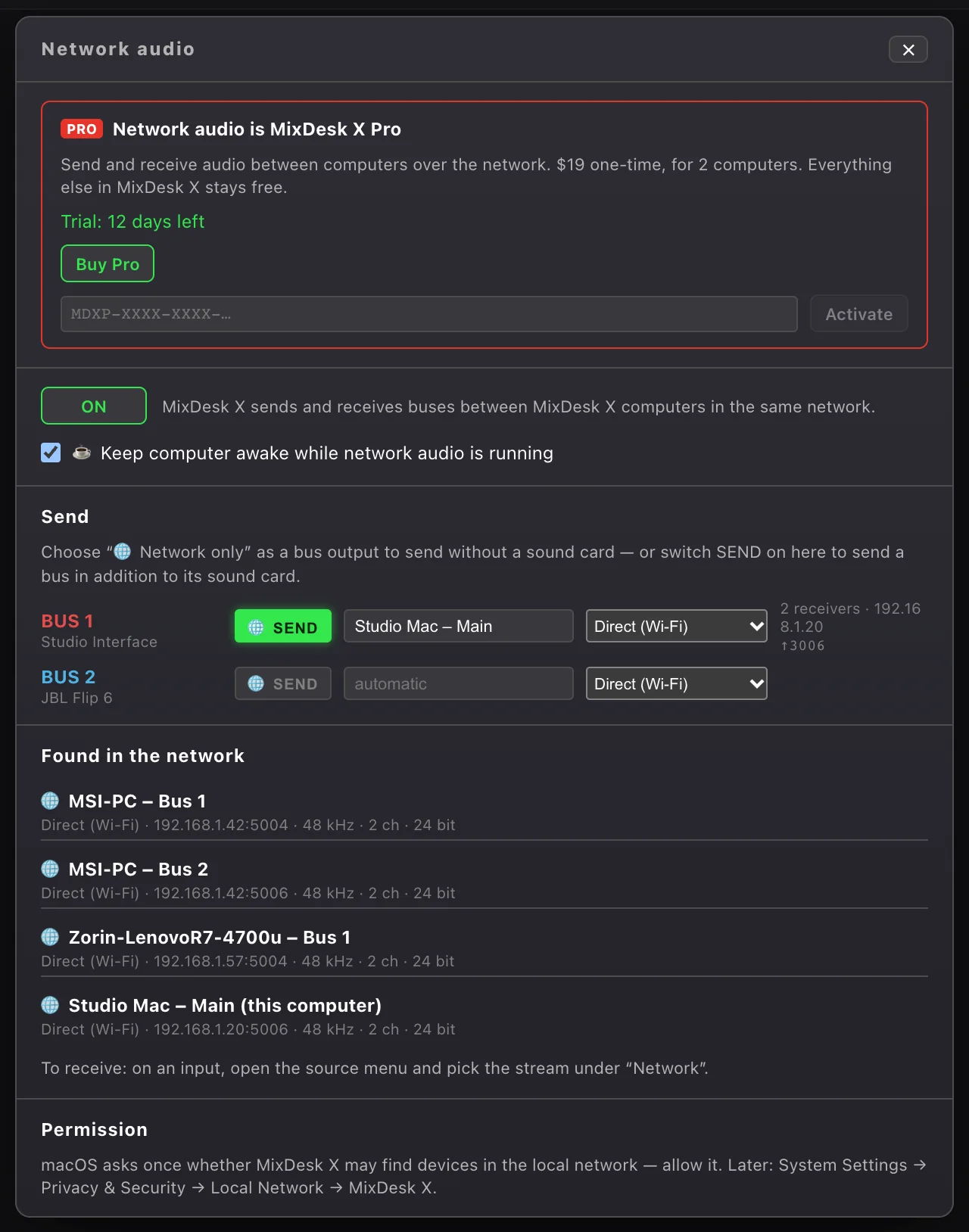
Send any output bus over the network and pick it as an input on another MixDesk X computer — Mac, Windows and Linux (beta), in any direction, also several computers in a chain. Everything sits behind the 🌐 button in the top toolbar.
MDXP-… key and click Activate. Deactivate on this computer frees the activation so you can use the key on another computer.Switching it on
- Click 🌐 and switch network audio ON. It is off by default: until then MixDesk X opens no network ports and sends nothing.
- macOS asks once whether MixDesk X may find devices in the local network — allow it. Later: System Settings → Privacy & Security → Local Network → MixDesk X.
- Windows asks once for firewall access — allow it for private networks. The network profile must be “Private”, not “Public”.
Sending
- In addition to the sound card: switch SEND on for a bus in the 🌐 dialog — the bus keeps playing to its device and goes to the network as well.
- Network only: choose 🌐 Network only as the bus output — the bus then mixes just for the network, no sound card needed.
- Stream name: the field next to SEND. Left on automatic, it is named after the computer and the bus (e.g. MacMini-M4 – Bus 3). Receivers find the stream by this name.
Receiving
- On an input, open the source menu and pick the stream under Network. The list also shows this computer's own streams, marked this computer. The 🌐 dialog lists everything under Found in the network.
- If a sender restarts or changes its address, the receiver follows it by name.
Direct or Multicast
Chosen per sending bus in the 🌐 dialog.
| Mode | What it does |
|---|---|
| Direct (Wi-Fi) | The default. Every receiver gets its own packets — the safe choice for cable, Wi-Fi and mesh. |
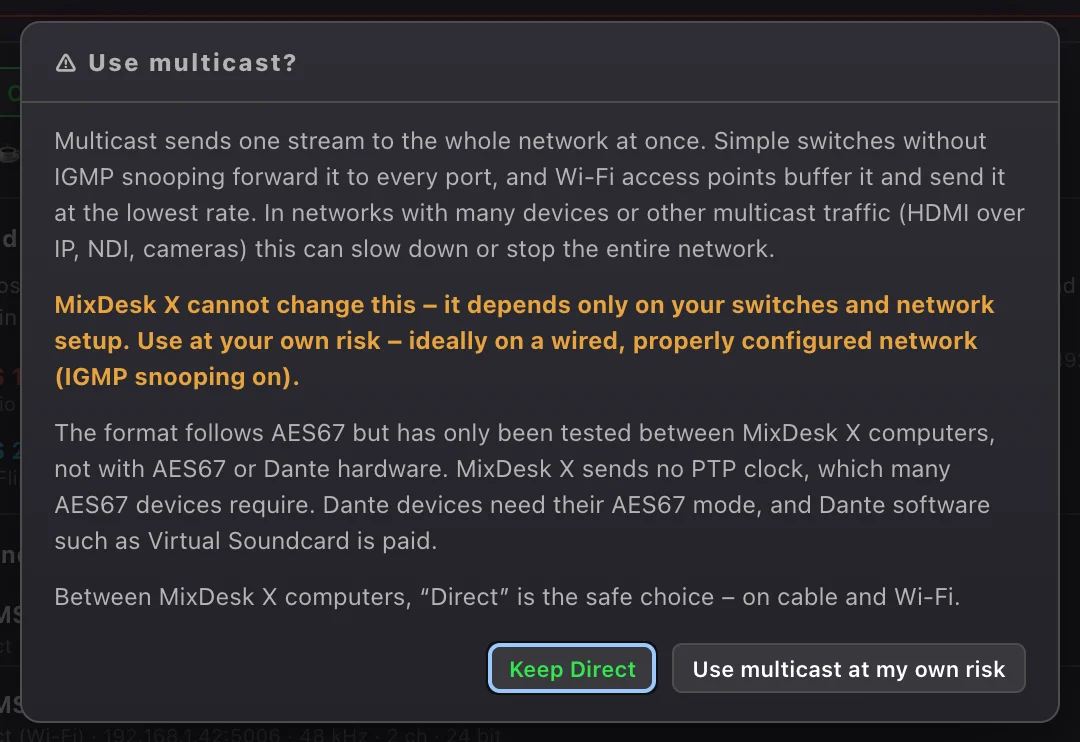
| Multicast (AES67) | One stream for the whole network, in AES67 format. Only after a confirmation: simple switches without IGMP snooping forward multicast to every port, and Wi-Fi access points buffer it and send it at the lowest rate — it can slow down everything else on the network. MixDesk X cannot change this; it depends on your switches. At your own risk, ideally on a wired, properly configured network (IGMP snooping on). |
Buffer, clock and bandwidth
- Network buffer per input: 20 / 50 / 100 / 200 ms. New network inputs start at 200 ms (safe on Wi-Fi); use 50 ms on a wired network and for lip-sync work.
- Clock drift is compensated: two computers never run at exactly the same speed. The receiver adjusts by a few millionths with a high-quality resampler — no clicks, no slowly growing delay.
- About 2.3 Mbit/s per stereo stream (48 kHz, 24 bit).
☕ Keep computer awake
Sleep stops network audio, and on some computers the display switching off crackles in the sound. So while network audio runs, MixDesk X keeps the computer and display from sleeping. This is on by default; switch it off in the 🌐 dialog (Keep computer awake while network audio is running) and the system's energy settings apply again. The ☕ button in the toolbar keeps the computer awake permanently.
Mac, Windows and Linux
Network audio was tested live between Mac, Windows and Linux (beta) in every direction — including Linux receiving multicast from Windows and passing it on via Direct to the Mac. For the Linux package see setup.

Tray icon & Mini Mixer
- Closing the window hides MixDesk X to the tray / menu bar rather than quitting.
- Left-click the tray icon: macOS toggles the Mini Mixer; Windows opens/focuses the full mixer.
- Right-click: Open Mixer, Mini Mixer (macOS), and Quit MixDesk X.
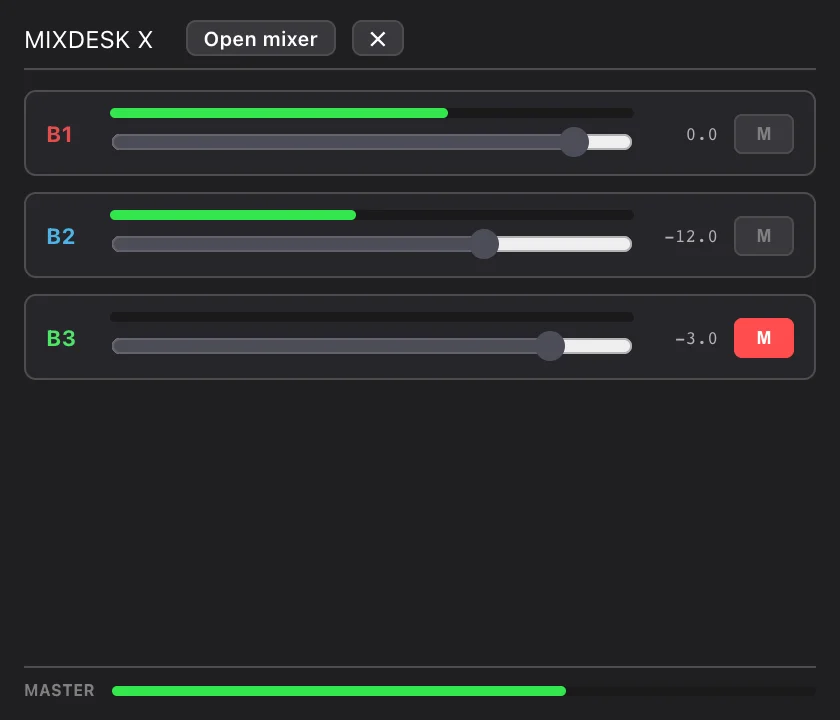
- Mini Mixer — a compact always-on-top view: one row per bus (mini meter, fader, mute), a MASTER meter, and a button back to the full mixer.
Status bar
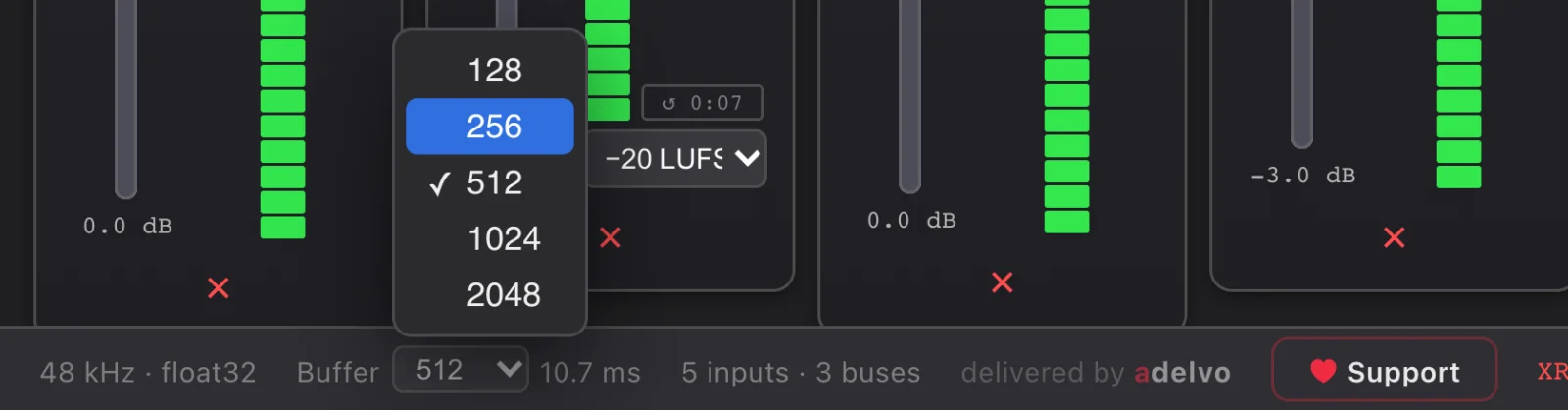
- Buffer — 128 / 256 / 512 / 1024 / 2048 frames; smaller = lower latency (shown in ms). Changing it briefly restarts the streams.
- 48 kHz · float32 — the fixed internal engine quality. Devices are converted to/from their own rate automatically.
- {i} inputs · {b} buses — a live counter.
- ♥ Support — opens the MixDesk X tip page on Ko-fi. MixDesk X stays free; a tip is a voluntary thank-you and comes with nothing in return.
- delivered by adelvo — opens adelvo.io.
- XRUN — a crackle counter (dropped/underrun frames); click to reset. A few at startup are harmless priming.

Updates
An update pill (⬆ v…) appears in the footer when a newer version is available (checked shortly after launch, then hourly). Click it to install in place. If an automatic update fails, it turns into ⚠ v… and clicking opens the download page.

FAQ & troubleshooting
I hear everything twice.
You're using cable-free capture, which taps the sound while the app still plays on your default output. Use a driver/cable route (Mac driver or Windows VB-Cable), or send the app's own output somewhere else.
My mic keeps feeding back.
Turn on LC (low-cut) on the mic channel to kill rumble, and arm the FBK feedback destroyer in its 31-band EQ editor. Ring the system out in FIXED mode at soundcheck.
Auto-EQ or ALIGN does nothing useful.
Make sure the measurement-mic channel is not routed to the bus you're measuring, and load a calibration file with 🎤 CAL if you have one for your mic.
The other computer doesn't find my network stream.
Network audio must be switched on in the 🌐 dialog on both computers, and a bus must send. On macOS, check System Settings → Privacy & Security → Local Network → MixDesk X (switch it off and on again if the stream stays invisible). On Windows, allow MixDesk X in the firewall for private networks and make sure the network profile is “Private”.
A device vanished mid-show.
It stays listed as ⚠ device missing and reconnects automatically when it comes back — no need to rebuild the setup.
Crackles / XRUN counting up.
Raise the Buffer size a step (e.g. 512 → 1024). A few XRUNs right after start are normal priming.
Where do the free effects come from?
➕ Install free effects (Airwindows) pulls a free, open CLAP pack (~400 effects). You can also drop in any other CLAP plugins you own.